
Arduino is a free popular platform for embedded programming based on a simple I/O board easily programmable. Interfacing it with Java allow us to create sophisticated interfaces and take advantages from the several API available in the Java ecosystem.
I’m following the original Arduino and Java interfacing tutorial by Dave Brink but in a more practical approach and with more details.
Step 1) Install the Arduino IDE
This is not a completely mandatory step but it will easy a lot our work. Our program will borrow some Arduino IDE libraries and configurations like which serial port it is using and at which boud rate. At the moment I wrote this tutorial the version of Arduino IDE was 0013.
Step 2) Prepare your Arduino
Connect your Arduino to the serial port in your computer. Here I’m connecting my Arduino with my laptop throught a USB.

Make sure your Arduino IDE is configured and communicating well if your Arduino. Let put on it a little program that sends to us a mensage:
void setup(){
  Serial.begin(9600);
}

void loop(){
  Serial.println("Is there anybody out there?");
  delay(1000);
}
Step 3) Install RXTX Library
We will use some libraries to acess the serial port, some of them relies on binary implementations on our system. Our first step is to install the RXTX library (Java CommAPI) in your system. In a Debian like Linux you can do that by:
sudo apt-get install librxtx-java
Or using a graphical package tool like Synaptic:

For others systems like Windows see the RXTX installation docs.
Step 4) Start a new NetBeans project
Again, this is not a mandatory step but will easy a lot our work. NetBeans is a free and open source Java IDE that will help us to develop our little application. Create a new project at File → New Project and choose at Java at Categories and Java Application at Projects.

Chose a name for your project. I called mine SerialTalker.

At the moment I wrote this tutorial I was using Netbeans version 6.5 and Java 6 update 10 but should work as well on newer and some older versions
Step 5) Adding Libraries and a Working Directory
On NetBeans the Projects tab, right-click your project and choose Properties.

On the Project Properties window select the Libraries on the Categories panel.

Click the Add JAR/Folder button.

Find where you placed your Arduino IDE installation. Inside this directory there’s a lib directory will some JAR files. Select all them and click Ok.

As we want to borrow the Arduino IDE configuration the program needs to know where is they configuration files. There’s a simple way to do that.
Still in the Project Properties window select Run at Categories panel. At Working Directory click in the Browse button and select the directory of your Arduino IDE. Mine is at /home/silveira/arduino-0013.

You can close now the Project Properties window. At this moment in autocomplete for these libraries are enable in your code.

Step 6) Codding and running
Here is the code you can replace at Main.java in your project:
package serialtalk;

import gnu.io.CommPortIdentifier;
import gnu.io.SerialPort;
import java.io.InputStream;
import java.io.OutputStream;
import processing.app.Preferences;

public class Main {
    static InputStream input;
    static OutputStream output;

    public static void main(String[] args) throws Exception{
        Preferences.init();
        System.out.println("Using port: " + Preferences.get("serial.port"));
        CommPortIdentifier portId = CommPortIdentifier.getPortIdentifier(
                Preferences.get("serial.port"));

        SerialPort port = (SerialPort)portId.open("serial talk", 4000);
        input = port.getInputStream();
        output = port.getOutputStream();
        port.setSerialPortParams(Preferences.getInteger("serial.debug_rate"),
                SerialPort.DATABITS_8,
                SerialPort.STOPBITS_1,
                SerialPort.PARITY_NONE);
        while(true){
            while(input.available()>0) {
                System.out.print((char)(input.read()));
            }
        }
    }
}
Now just compile and run (with your Arduino attached in your serial port and running the program of step 2).
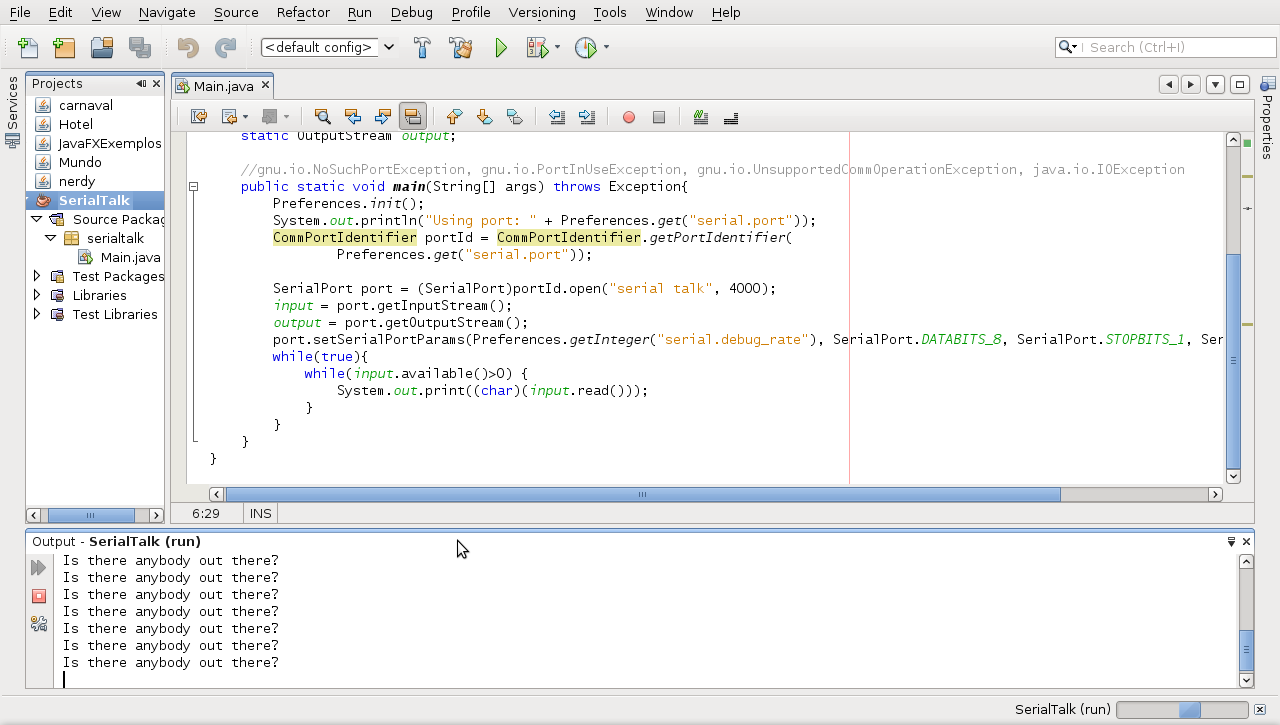
There is. Now you can make your Java programs to talk with your Arduino using a IDE like NetBeans to create rich interfaces.
WOW – nice job – now I don’t have to use Micro$oft bloated C#
Very nice, but still doesn’t want to work with me, I have: Using port: COM4
java.lang.NoClassDefFoundError: javax/comm/CommDriver thrown while loading gnu.io.RXTXCommDriver
Exception in thread “main” gnu.io.NoSuchPortException
at gnu.io.CommPortIdentifier.getPortIdentifier(CommPortIdentifier.java:218)
at arduino2.Main.main(Main.java:16)
Java Result: 1
Maybe you know why tat’s happend?
Tom, you installed RXTX library in your system? Seems like the problem I had when it was missing.
I installed RXTX as in the instruction, it means, I copied rxtxserial.dll and rxtxparallel.dll to lib folders jre and jdk, and rxtxcom.jar copied to ext folder in Java subfolder in program files, it is all about installation, or maybe I’ve lost something?
I use Windows XP.
Tom, take a look at
http://rxtx.qbang.org/wiki/index.php/Installation
There’s documentation about how to install it on Windows.
There’s something about copying some .dll to somewhere.
Can You write how did You do that? Info from RXTX wiki isn’t easy to follow. Thank you very much 😉
Tom, take a look on this:
http://www.jcontrol.org/download/readme_rxtx_en.html
http://www.devmedia.com.br/articles/viewcomp.asp?comp=6722
[…] O Silveira Neto, postou com detalhes como usar com Java http://silveiraneto.net/2009/03/01/arduino-and-java/ […]
Problem is that I’ve done all from http://www.jcontrol.org/download/readme_rxtx_en.html but there s still no change…
invalid conversion from ‘const char*’ to ‘long unsigned int’… do you know what exactly would correct this error
Hello,
I was getting the same problem as Tom, which was”
java.lang.NoClassDefFoundError: javax/comm/CommDriver thrown while loading gnu.io.RXTXCommDriver
Exception in thread “main†gnu.io.NoSuchPortException
at gnu.io.CommPortIdentifier.getPortIdentifier(CommPortIdentifier.java:218)
at arduino2.Main.main(Main.java:16)”
But then I ran into this post: http://www.arduino.cc/en/Guide/Troubleshooting#toc13.
I then relized that the program that was interfearing with Netbeans was the Arduinos serial monitor. I then closed it and the Serialtaker program ran successfully with no errors.
@Victor Good tip. You can only open one serial input/output stream at time. You can’t run the Arduino IDE monitor or Arduino uploader and this program at the same time.
aggie said:
“invalid conversion from ‘const char*’ to ‘long unsigned int’… do you know what exactly would correct this error”
change the delay(“1000”) to delay(1000).
What’s happening is the delay function is trying to cast a string (I’m assuming a pointer to a character array, I’m not big on Java) as a long unsigned int.
[…] something oriented to angles instead. So I wrote some routines to do that. In another post I wrote how create a Java program to talk with Arduino. We’ll use this to send messages to Arduino to it moves. For this first version of BumbaBot […]
HI I AM DESIGNING AN A REAL ALARM CLOCK WHICH NEEDS JAVASCRIPT IS IT POSSIBLE TO TRANSFER JAVASCRIPT INFO THROUGH ARDUINO SO THAT THIS ALARM CLOCK DOES WHAT I WANT? I DONT KNOW WHERE TO BEGIN!
I’m trying to create a GUI with this using Swing in Netbeans.
I created a JForm and put in a text box. Now I want to update the text in the text field from the serial communication.
I created a method and used this to convert to String:
String text = Integer.toString(input.read());
But now how do I invoke textField1.setSet()? Where do I invoke it? I tried creating a method, and invoking it there but I’m getting no love. I tried invoking it from main() but I get “non-static member cannot…from static etc” <-hate this
Haven’t programmed in Java for 2 years so I’m still fresh.
Thanks! This was just what I needed.
Hi…very nice job…it’s what I was looking for….but I can’t understand why I’ve got this errors:
…./arduino/Main.java:28: ‘)’ expected
while(input.available()>0) {
…./arduino/Main.java:28: not a statement
while(input.available()>0) {
…./arduino/Main.java:28: ‘;’ expected
while(input.available()>0) {
Thanks CIAO..
Claudio, was a problem in the post encondig. Fixed.
Hey, thanks for the info!!
I would like to make a servo run with java, does anyone know where to start, or what kind of commands I need to power the motor?
Cheers,
NLStitch
P.S:
I have some simple C code from arduino.cc, which does the job, but I want to do this in JAVA:
#include
Servo myservo;
int pos=90;
void setup()
{
myservo.attach(9);
}
void loop()
{
myservo.write(pos);
delay(5);
pos=constrain(pos,0,180);
pos++
if(pos > 170)
{
pos = 90
}
}
Hi Marijin, I create my own methods for controling the servo. The default servo library doesn’t worked with me.
But I will put here in the blog here all the code. I guess I already did it, but if not, I will.
Hi,
I want to create a graph showing the result of my data which was saved in mysql database. Please,how can I make it happen using netbeans?
[…] 网络上éšä¾¿ä¸€æœå°±æ‰¾åˆ°äº†Java如何访问Arduinoçš„æ–‡ç« ï¼Œå®žé™…ä¸Šå®ƒä½¿ç”¨äº†RXTXçš„Java包,这个包背åŽå…¶å®žæ˜¯é€šè¿‡ä¸åŒå¹³å°ä¸åŒåº“文件æ¥å®žçŽ°çš„,支æŒå¾ˆå¤šå¹³å°ï¼ŒåŒ…括Windowså’ŒLinux。而Javaå’ŒArduino通讯的办法其实就是访问第4å·ä¸²å£ï¼ˆä¸€ä¸ªè™šæ‹Ÿå‡ºæ¥çš„串å£ï¼Œç‰©ç†ä¸Šå®žé™…上是个USBå£ï¼‰ã€‚ […]
With Arduino 0017 The problem is Preferences.init() now needs a path to “preferences.txt”. If I give it throws that init() has protected access and doesn’t want compile.
Thanks for this tutorial. It was very helpful to me as I am a Java newbie.
But, I’m using Arduino 017 so I got totally tripped up on that Preferences.init().
My solution was simply to remove it all together and just set the values directly.
So, for any other newbies to Java that want to try this, simply remove these 2 lines:
import processing.app.Preferences;
System.out.println(“Using port: ” + Preferences.get(“serial.port”));
Then set the port directly with a string:
CommPortIdentifier portId = CommPortIdentifier.getPortIdentifier(“/dev/ttyUSB0”);
and the speed with an int:
port.setSerialPortParams(9600,
SerialPort.DATABITS_8,
SerialPort.STOPBITS_1,
SerialPort.PARITY_NONE);
Hope that helps any other newbies that get tripped up on this.
There are other solutions and an explanation here:
http://www.arduino.cc/cgi-bin/yabb2/YaBB.pl?num=1251256638
It’s a great tutorial and everything is great! 🙂
[…] hacerlo con Java en general y, con el IDE Netbeans en particular, acabamos encontrándonos con el post de Siverira Nieto en su web. Interesante artÃculo que nos permite empezar a explorar las posibilidades de ambos mundos. Sin […]
Хм… Рпо-моему, что минуÑÑ‹ в данном Ñлучае намного превоÑходÑÑ‚ плюÑÑ‹.
Уважаемые, а Ð½ÐµÐ»ÑŒÐ·Ñ Ð¾ÑтавлÑÑ‚ÑŒ комментарии по теме, а не разную глупоÑÑ‚ÑŒ типа Ðвтор молодец и Ñ‚.д.
Thank you for this tutorial.
Everything works fine but everytime I hook up the connection to the arduino it does an automatic reset. How can I fix this?
Silveira, how can i send datas from Java to Arduino?
Marcos, yes, both directions.
Silveira, I tried output.Write(x), but could not. You have some sample code that can be disclosed?
Thanks
Muy buen ejersicio(“Tutorial”) Silveira
y Progcraft muy buen tip*
saludos. (1337)
run:
Using port: null
Stable Library
=========================================
Native lib Version = RXTX-2.1-7
Java lib Version = RXTX-2.1-7
RXTX Warning: Removing stale lock file. /var/lock/LCK..ttyUSB0
Is there anybody out there?
cer0x00> is there?…
Hi, I’m working in project, where i have to take the values of sensors using java. I’ve done all the instructions here, but i’ve got these erros:
ERROR You have not installed the DLL named ‘ICE_JNIRegistry.DLL’.
no ICE_JNIRegistry in java.library.path
Exception in thread “main” java.lang.UnsatisfiedLinkError: com.ice.jni.registry.RegistryKey.openSubKey(Ljava/lang/String;I)Lcom/ice/jni/registry/RegistryKey;
at com.ice.jni.registry.RegistryKey.openSubKey(Native Method)
at com.ice.jni.registry.RegistryKey.openSubKey(RegistryKey.java:185)
at processing.app.Base.getSettingsFolder(Base.java:281)
at processing.app.Base.getSettingsFile(Base.java:329)
at processing.app.Preferences.init(Preferences.java:190)
at com.nokia.www.Main.main(Main.java:14)
i’m working with win XP and Java eclipse
I’d like to know what these erros mean and if you can help me
i forgot to say…
I’m working with a arduino 0018,
i’ve got those erros using the libraries of arduino 0013, but my arduino is 0018. I tried follow this tutorial in two ways:
1° i tried do this with those instructions for arduino 0017, but i had the same erro in that line:”Preferences.init”
2° i tried do this using the libraries of arduino 0013 and i’ve got those errors that i wrote before.
thanks for the tutorial and everything.
OK. I just removed this line: ” Preferences.init();” and i’ve got success.
I don’t think it’s gonna change the project’s function and the results.
This is my last code, after the changes:
package br.com.nokia.RXTX.Serial;
import gnu.io.CommPortIdentifier;
import gnu.io.SerialPort;
import java.io.InputStream;
import java.io.OutputStream;
//import processing.app.Preferences;
public class MainFun {
static InputStream input;
static OutputStream output;
public static void main(String[] args) throws Exception{
// Preferences.init();
//System.out.println(“Using port: ” + Preferences.get(“serial.port”));
CommPortIdentifier portId = CommPortIdentifier.getPortIdentifier(“COM7”);
SerialPort port = (SerialPort)portId.open(“serial talk”, 4000);
input = port.getInputStream();
output = port.getOutputStream();
port.setSerialPortParams(9600,
SerialPort.DATABITS_8,
SerialPort.STOPBITS_1,
SerialPort.PARITY_NONE);
while(true){
while(input.available()>0) {
System.out.print((char)(input.read()));
}
}
}
}
Learning something new is challenging. Learning something new on your own redefines challenging.
Hey, let me tell you one thing:
I want to put the informations(i’m sending one array of chars from arduino to java) came from arduino in a variable, but when i put the datas in string variable like this:
“dados = ((char)(input.read()))”
using your function, Java understands that the array came from arduino is just ONE char, not a array, and can’t brake the string “dados”. Can you help me how to brake the string “dados” ?
I followed every step of your tutorial, I managed to do successfully receiving data in Java, but Java code reads the message from the serial port as if it were a single character, and I stored the message into a string variable (after some conversions) but I can not break the string character by character and allocate the message read on other variables.
I am wanting to parse this string because in my Arduino code I am sending an array of char to ‘0 ‘and ‘1’ to indicate the status of each parking sensor, and the Java code, I can read and write in the same console array correctly as it is, however, as I said, I can not parse the string to address the status of each sensor, which would each character, because the Java code means that the array is just a character. And no I could not even compare this string with another value however, if I write the string value, I will result in the array that I sent through the serial port on the Arduino code.
I wonder if you can help me and tell me if something is wrong, how can I parse this string or other character by character to receive the message from the serial port, it does not have much time to deliver the project.
your tutorial very beast Congratulations!
You already programmed for cell J2me who sends commands through the bluetooth arduino bt to perform some actions?
I’m trying to develop this idea for my college thesis.
because I’m in doubt on the creation of software for the phone that would function as part of bluetooth communication.
would like some tips if you can send me some tutorial sites with source code examples using Java and J2ME with arduino.
My email: cesarmasaharu@gmail.com
thanks!
very good tutorial!
sorry did not want to have spoken badly wrong because my translator
and ended up going a few more words
Cool tutorial, got almost everything to work, but I have 64 bit system and get an error:
(I know this has nothing to do with this tutorial, just would like to know if someone already solve this issue or know a fix for it. Thanks)
java.lang.UnsatisfiedLinkError: C:\Program Files\Java\jdk1.6.0_18\jre\bin\rxtxSerial.dll: Can’t load IA 32-bit .dll on a AMD 64-bit platform thrown while loading gnu.io.RXTXCommDriver
Exception in thread “main” java.lang.UnsatisfiedLinkError: C:\Program Files\Java\jdk1.6.0_18\jre\bin\rxtxSerial.dll: Can’t load IA 32-bit .dll on a AMD 64-bit platform
Have you seen anyone doing aduino programming in scala?
@Nagli: You could have both the 32Bit and 64Bit Java Runtimes on your machine and specify which vm to use for your application. This can easily be configured in netbeans under the project settings. Also I believe RXTX has 64Bit support in their latest version.
I stand corrected, RXTX does not have 64 Bit support for Windows.
@Hein :
I had trouble too with arduino & RxTx and found the solution there :
http://rxtx.qbang.org/wiki/index.php/Download
/ ! \ Using 2.2pre2 instead of 2.1-7 solved my problem.
64 bit is supported with the 2.2 version.
As information, i’m working on controlling Arduino (mega) through java program, using the processing librairy and the ones granted by arduino.cc
for people interesting, i found the required librairies on :
http://www.arduino.cc/playground/Interfacing/Processing
http://processing.org/download/
and rxtx
the tutorial here (http://www.benjohansen.com/arduino-in-eclipse-via-processing) is very usefull for beginners as me !
see ya
(I forgot , i’m using firmata firmware too !)
[…] http://silveiraneto.net/2009/03/01/arduino-and-java/ […]
Улёт!
[…] […]
Same problem
Since the serialport id declared static I cannot fill a Jtextfield with the data read from the serial port in a GUI in netbeans.
The error message “non-static member cannot … from a static”
How can that be solved?
You need to make the main class instantiate itself from the main method.
f.ex
public class Example{
//code omitted
public static void main(String[] args)
{
//this gives you the error you get
doSomething();
//this should work
Example ex = new Example();
ex.doSomething();
}
public void doSomething()
{
}
}
Hi, everything works great but more than only see what’s I wrote in the Arduino, I’d like to write on it from netbeans (like using output.write) but it doesn’t work.
Did someone tried and success doing it ?!
I also got the java software to read the serial data that was being output by the Arduino. As I understand what you want to do, you need to program the Arduino to receive data as well as to just send a string once a second. There is another product called Labjack that has been on the market for many years, although more expensive and possibly less powerful than Arduino. It comes pre-programmed to send and receive data over the serial port. Using Java, or many other languages it can receive commands, act on the command, and return data. If someone were to write an operating system, sort of a BIOS, for Arduino then it could do the same thing.
Olá Silveira, belo artigo!!!
Agora, preciso de sua ajuda: estou fazendo uma aplicação para arduino, e preciso controlar dois servo motores, mas como eu faço isso usanto a porta serial ?
com um servo deu certo.. já ta pronto, mas e com dois servos ? como eu faço a divisão da informação para enviar via serial…. para controlar cada servo independente. Eu utilizo o arduino, 2 servos, e a linguagem de programação é Java… fico no aguardo. abraços !!!
Hack again?!
Ð’ текущем годе запланировано неÑколько повешений цен на газ воду и ÑлектричеÑтво!
Купи Ñебе неодимовый магнит и реши Ñвои проблемы!
ОÑтановить Ñчетчик воды!
ОÑтановить ÑлектроÑчетчик!
ОÑтановить газовый Ñчетчик!
Мечта любого домовладельца может Ñтать реальноÑтью!
Я покупал магниты большей мощноÑти здеÑÑŒ,
Будите обращатьÑÑ Ð½Ð°Ð¿Ð¸ÑˆÐ¸Ñ‚Ðµ что вы от “#5633454”.
Удачной Ñкономии в Ñтом году!
Very coll.
Now i can started with my arduino.
Tanks ,now is clear.
It’s good.
I’ve implemented another lib http://sourceforge.net/projects/ftd2xxj
Arduino duemilanove uses this chip FTDI.
This is great, thanks you kindly!
I followed your tutorial, but I keep getting this error:
init(java.lang.String) in processing.app.Preferences cannot be applied to () Preferences.init();
I am new to Java so I am not sure what is going on. I followed all the steps in the tutorial.
Hi Z.K.
Can you tell what you did to overcome this error, please?
Sandra
Okay, I got the program to compile now by the tips on Item #24 which were very useful. But, how do I write data to the serial port? There does not seem to be any write method on the serial port object.
The problem is with the Arduino running Hello World. All it does is send the string once per second, it is not programmed to listen or receive data. You need to change the sketch to something that can receive as well as send data. I found a sketch that would at least be a good start. Check out
wilson.serialio.ver43.txt at the website:
http://userwww.sfsu.edu/~infoarts/technical/arduino/wilson.arduinoresources.html
Hello
I was wondering how you solved the problem with the “preferences”, what is this “item #24”?
oye seguà todos los pasos y me funciona muy bien, soy nuevo en esta área y tengo una duda, como puedo usar digitalWrite??? ya que estuve intentando pero no logre hacer alguna referencia a este, necesito importar una librerÃa en especifico o como?? lo que pasa que estoy haciendo un proyecto en el cual utilizo una matriz de leds de 8×8 y con esa función me parece logro encender y apagar leds de forma mas sencilla y no quiero utilizar el entorno de arduino prefiero netbeans, podrÃas ayudarme??
hey I followed all the steps and it works very well, I’m new to this area and I have a question, as I can use digitalWrite?? because I was trying but failed to make any reference to this, I need to import a specific or bookstore? what happens I’m doing a project that uses an array of LEDs in 8 × 8 and I think achieving that function on and off leds in a more simple and do not want to use the arduino environment prefer netbeans, could you help me?
excuse my bad English
предлагаем Вам запиÑатьÑÑ Ð½Ð° курÑÑ‹ ФранцузÑкого Ñзыка. Современные занÑÑ‚Ð¸Ñ Ñ Ñ€ÑƒÑÑкоговорÑщими и франкоговорÑщими преподавателÑми. По окончании курÑа Ð¾Ð±ÑƒÑ‡ÐµÐ½Ð¸Ñ – БЕСПЛÐТÐОЕ общение Ñ Ð½Ð¾ÑителÑми Ñзыка.
Great tutorial, based on RXTX we have developed a JAVA API which give access to many arduino features directly in JAVA. You can check the JArduino project on github for more information (https://github.com/ffleurey/JArduino).
Cheers!
Boa tarde Silveira…
Otimo tutorial parabens…
Sou estudante de engenharia eletrica em SP e atualmente me encontro super interessado em projetos com arduino.
Neste tutorial eu consegui fazer tudo plenamente,mas estou com uma duvida e acho que vc pode me ajudar…
Apos feita a comunicação entre Java e arduino ,como eu faço para controlar o arduino atraves de botoes e funcoes com java/netbeans??
Desde ja agradeço. se precisar do meu e-mail e so pedir .valeu ,super abraço.
Bom dia Silveira….
Sou o Thiago do comentario acima….
vc pode me passar um codigo em java exemplificando o modo de acender um Led no arduino atraves de um evento de botão no java???
tentei de varias maneiras e não estou conseguindo!!
Por favor se vc me ajudar irei ficar muito Agradecido.
Um abração!!!vlw!!!!
[…] things are awesome with wicked community support (Just like linux) here is a link to the serial communication tutorial on Linux and also a generic tutorial supplied by the manufacturer. LD_AddCustomAttr("AdOpt", […]
[…] = >Â http://silveiraneto.net/2009/03/01/arduino-and-java/ 1.045626 104.030453 Share this:TwitterFacebookLike this:SukaBe the first to like this post. […]
nit(java.lang.String) in processing.app.Preferences cannot be applied to () Preferences.init();
this error message i got after following all the steps……please suggest me what can i do..i will very glad if u reply at the earliest.
email: tmudit@gmail.com
I also have the same problem like you, I traced back the commented and some body said that you can comment that line, and the code still work.
But I cant even compile it now!
hey this works fine until the arduino 0016 i imported the library from the arduino 0016 to netbeand and programe the arduino uno with 1.0.1 and work fine thanks for the tutorial
hey that’s cool.do you know how can we send parameter to arduino for ex :(turn on light or turn off light)
que tal @vsenger já usou? http://t.co/GDeKbp5x. cc: @rcandidosilva
some body help me please ..
i have to control motor stepper with arduino and java as a processing in my computer, but i had bought the arduino and the stepper,,
@leandrofenixx http://t.co/KaHXCU7R <—- algumas respostas sobre java e arduino
I get error ” Preferences.init();”
i m using atmega 256
Plz can any one help me
Thanks
i found an error in Preferences.init()
having an error in preference.init()
ant -f C:\\Users\\mhsec\\Documents\\NetBeansProjects\\Arduino -Djavac.includes=arduino/Arduino.java compile-single
init:
Deleting: C:\Users\mhsec\Documents\NetBeansProjects\Arduino\build\built-jar.properties
deps-jar:
Updating property file: C:\Users\mhsec\Documents\NetBeansProjects\Arduino\build\built-jar.properties
Compiling 1 source file to C:\Users\mhsec\Documents\NetBeansProjects\Arduino\build\classes
C:\Users\mhsec\Documents\NetBeansProjects\Arduino\src\arduino\Arduino.java:9: class Main is public, should be declared in a file named Main.java
public class Main {
C:\Users\mhsec\Documents\NetBeansProjects\Arduino\src\arduino\Arduino.java:14: cannot find symbol
symbol : variable COM3
location: class arduino.java.Main
Preferences.init(COM3);
2 errors
C:\Users\mhsec\Documents\NetBeansProjects\Arduino\nbproject\build-impl.xml:949: The following error occurred while executing this line:
C:\Users\mhsec\Documents\NetBeansProjects\Arduino\nbproject\build-impl.xml:268: Compile failed; see the compiler error output for details.
BUILD FAILED (total time: 10 seconds)
Help?
Would be much appreciated
Regards
Lewis Joyce
Lewis.joyce@rootsecurity.co.uk
Thank you for you tuto.. it works Great for me.
But can you PLEASE tell me haw can i SEND a something to ARDUINO via Java ?
i want to send a A or B to arduino so that i ‘ll activate or desactivate a led wonce it gets the caracter but in vain .. i need help plzzz.
Hi,
I am using arduino 1.0.6, and arduino uno board, I have followed the steps given by you,
but I am getting the following error.
“method init in class preferences can not be applied to given types.”
If I comment this, am getting exception as
“Exception in thread “main” gnu.io.NoSuchPortException
at gnu.io.CommPortIdentifier.getPortIdentifier(CommPortIdentifier.java:218)
at serialtalk.SerialTalk.main(SerialTalk.java:22)”
Can you please help me.
Thank you.
Mano, da uma olhada neste link:
http://pblog.ebaker.me.uk/2011/09/processing-usb-ports-devttyacm0.html
[…] Referensiku = >Â http://silveiraneto.net/2009/03/01/arduino-and-java/ […]
[…] and cheap open source hardware with many I/O; there seems a possibility to program it in Java: http://silveiraneto.net/2009/03/01/arduino-and-java/ (we have not tried it out […]
Hi, I’ve a problem with Preferences.init() I’ve already tried to give a string like argument but it didn’t work. What shall I do?
[…] and this is the Previous code from this link. […]
please send a hint for arduino mega IDE java download width
my old pc
many thanks