In 2016 I got a Monoprice Select Mini 3D Printer (model number 15365) for $200 USD. That was incredibly affordable for a 3D printer back then. That printer only gave me disappointments. I was never was able to print anything completely with it. My main problem was adhesion. The only help I got was online forums (there was a really active Facebook group about it). Debugging and trying different solutions without any success was not fun. It ended up just accumulating dust and occupying space in a corner.
Years later I found that my local library had working and calibrated 3d printers that I could just use. Just upload a .stl file and they would just email me when the print was ready. Also, for free. I tried it and it worked really well.
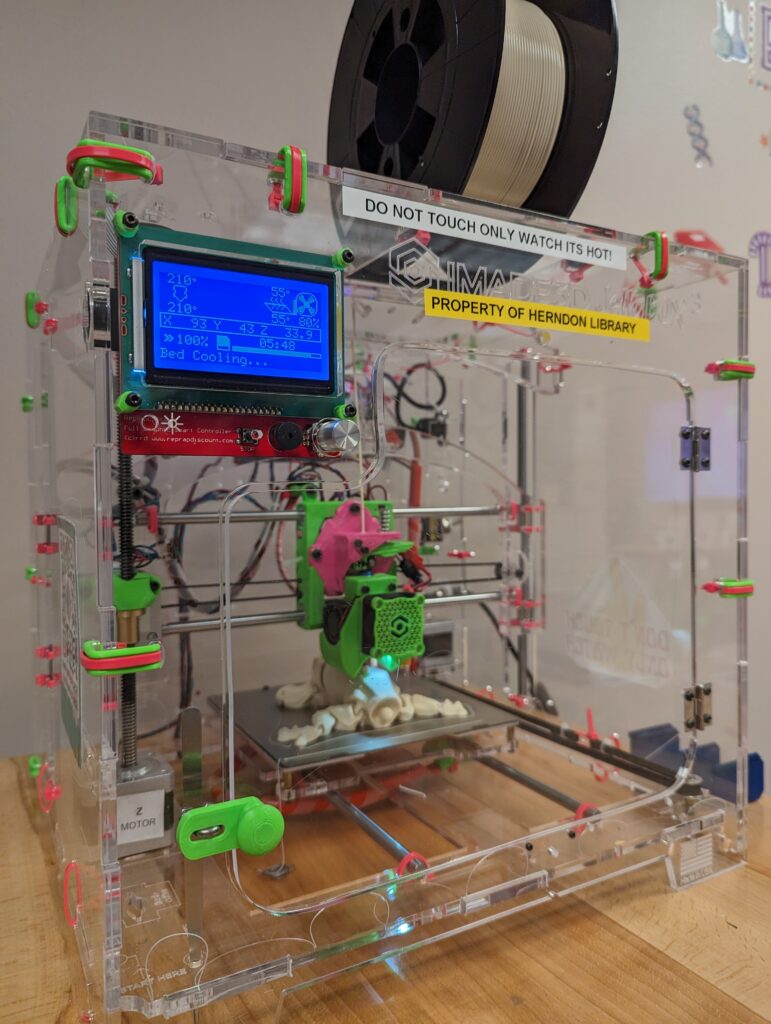
So I filled some paperwork and donated my Monoprice Select Mini 3D Printer to the library. They also had a lot of other cool technology programs going on. From now on if I need to print something I know I could just use the library. I promise myself I would not mess with 3D printers themselves anymore.
Now in 2025, someone in the neighborhood was looking to donate their Monoprice Maker 2 Ultimate 3D printer. Just when I thought I was out, they pulled me back in. I got it from his hands, bought a spool of PLA Filament and started playing with it.
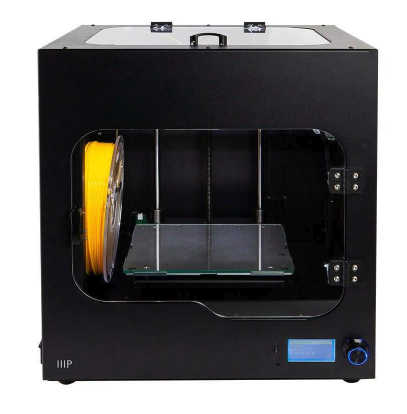
Monoprice Maker 2 Ultimate 3D printer technical specifications:
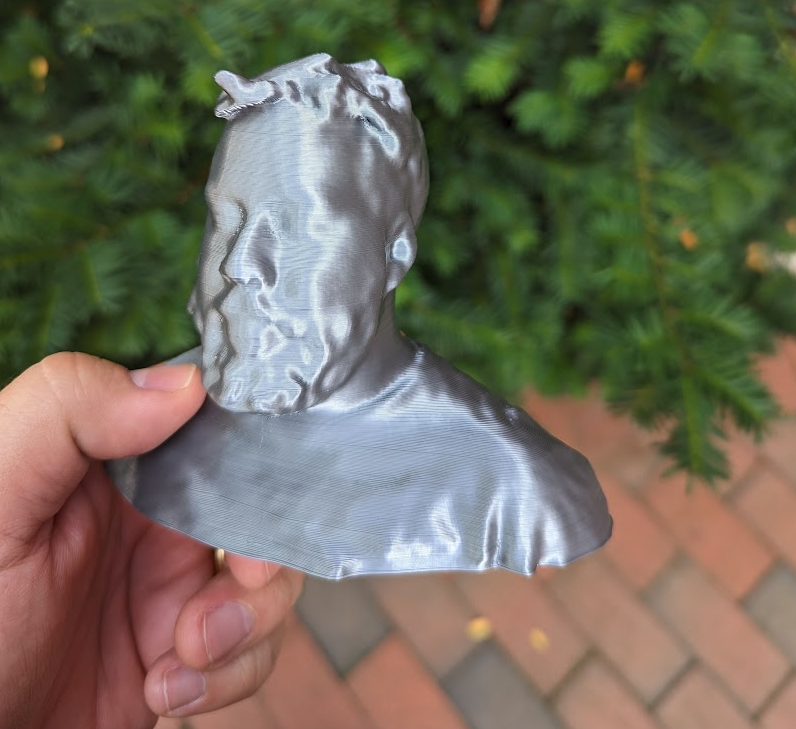
I started just printing whatever gcode it had on its sdcard. My first prints were just adhesion failures again. That’s when my previous experiences from before were handy. I re-applied painters tape on the print bed, then the prints started to get further and further before failing. Then I got my first complete 3d print.
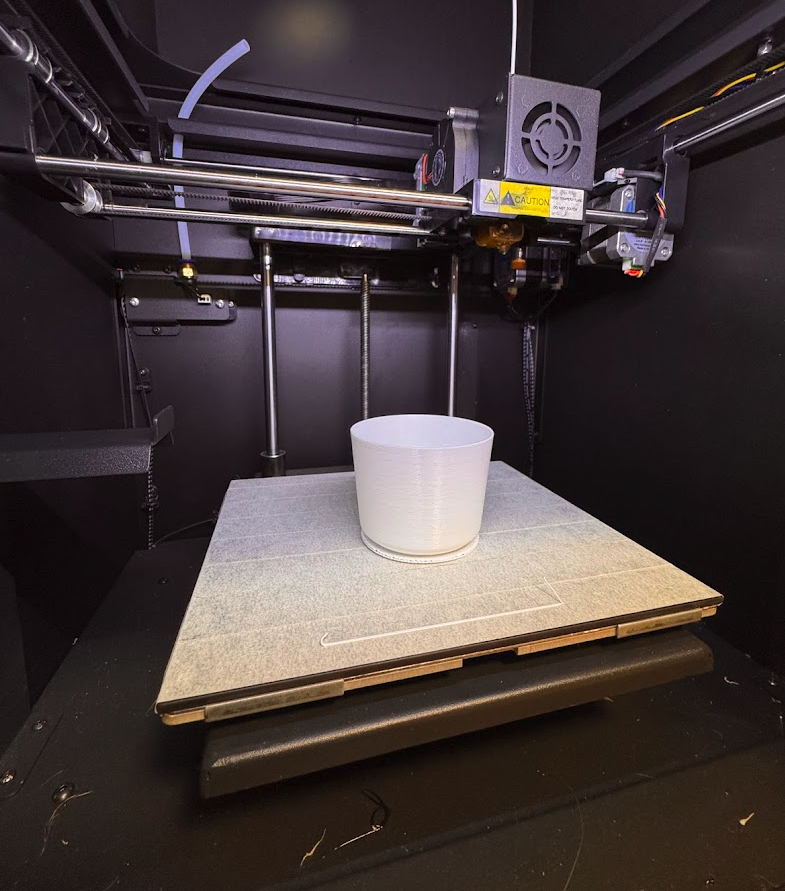
Then I started trying with Thingverse stl objects, cutting them in Ultimaker Cura and printing my own gcodes. Here is the catch: the Monoprice Maker 2 Ultimate is a rebranded Weedo F150s. After I configured Cura to use a Weedo F150s the gcodes produced started to print with success.
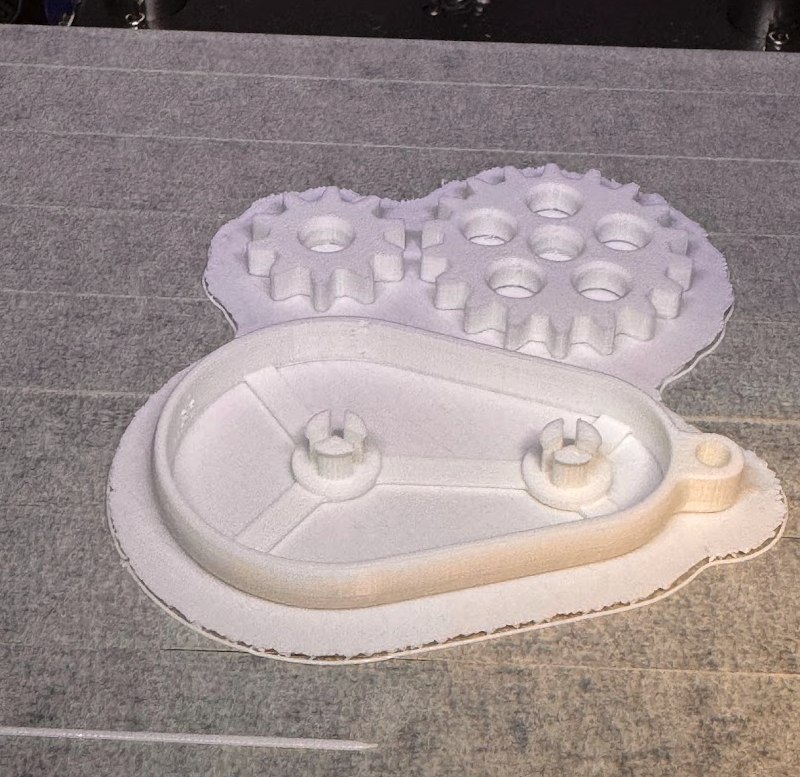
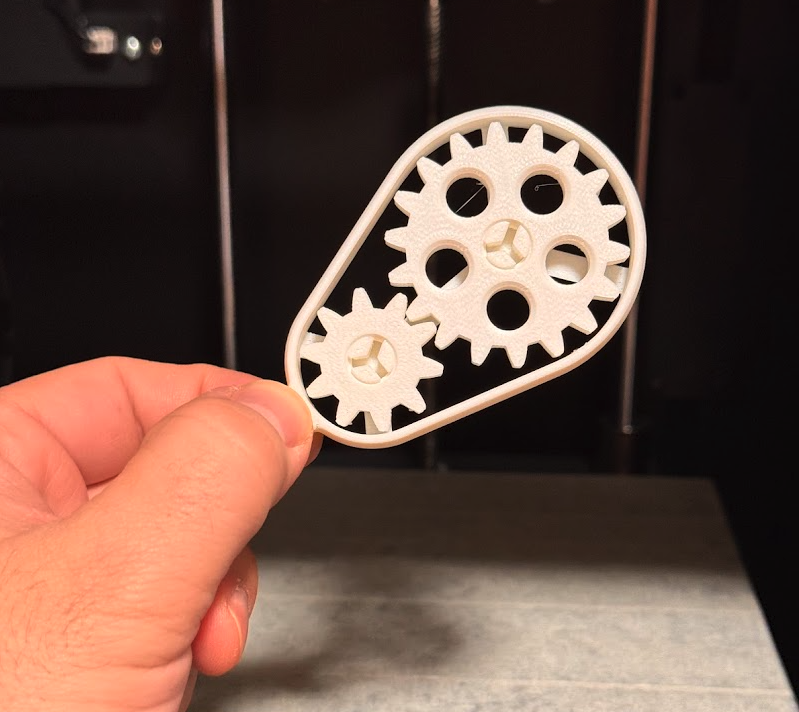
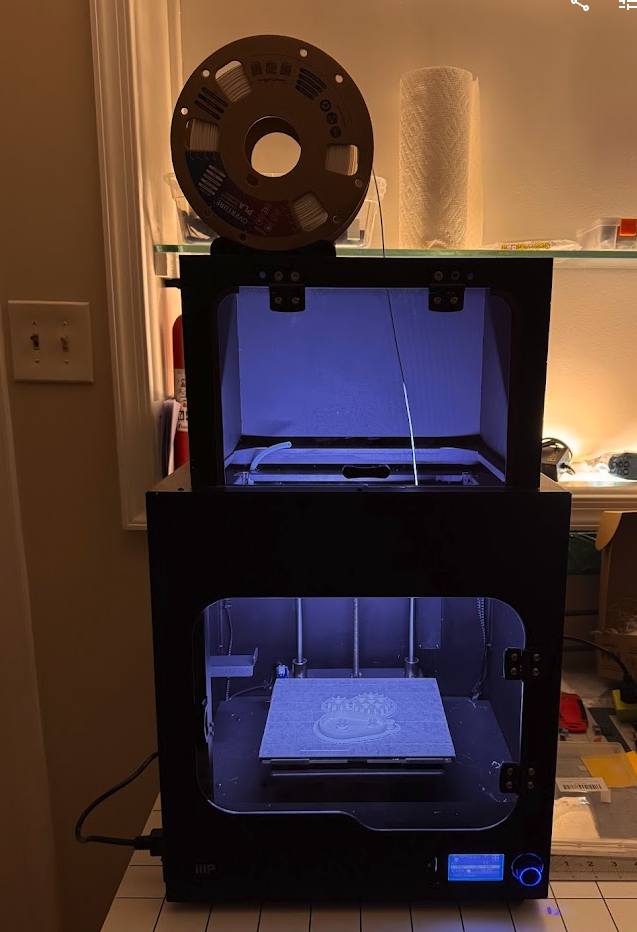
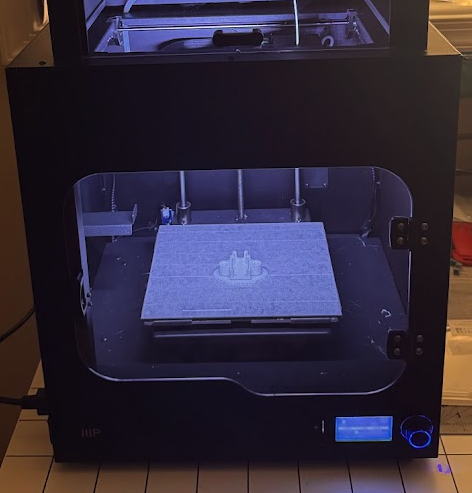
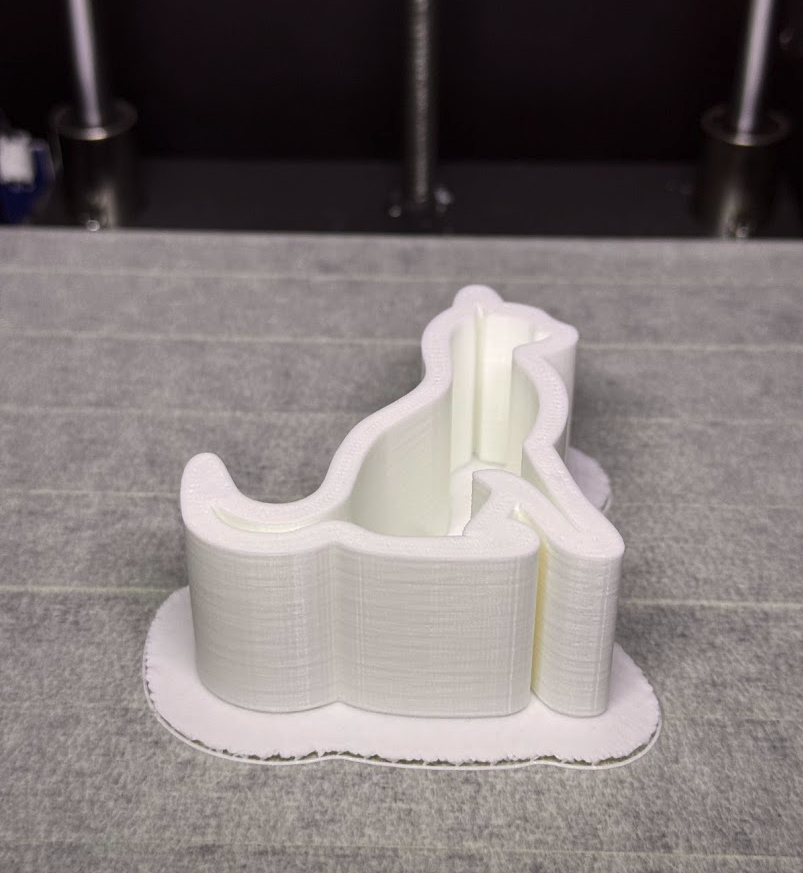
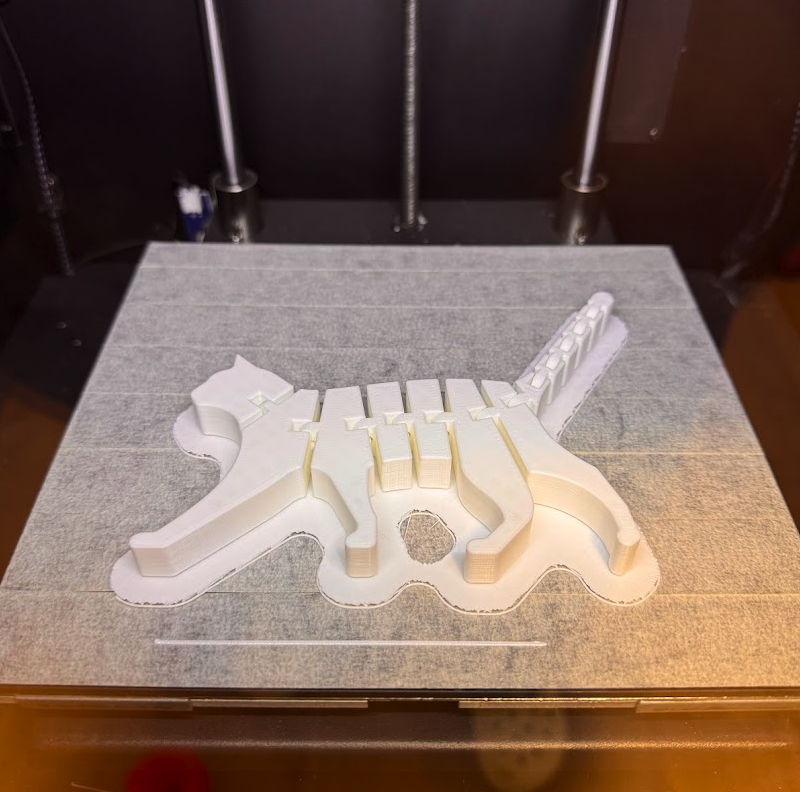
I have now printed this flexi cat that took almost 6 hours. Do you know what I never got it printing correctly? That 3DBenchy that I always tried to print on my first printer. On this one it always causes the printer to shift layers and fail. Surely with some fine tuning of the parameters I can get it right but the lesson learned here is that sometimes a simple vase is a much better goal. Also, sometimes a 3D printer have more success printing larger objects rather than small ones.
Before each command, run the prefix (default Ctrl+B).
:capture-pane -pane -S -3000
:save-buffer buffer.txt
This will write all scrollback from that pane to a file ~/buffer.txt.
Lenovo IdeaPad 1 14″ Laptop Computer – Cloud Grey (AMD Ryzen 5 5500U 2.1GHz Processor; 8GB DDR4-3200 Onboard RAM; 256GB Solid State Drive; AMD Radeon 7 Graphics) USD$ 229.99 + taxes.
Micro Center product page screenshot.


Went to the BIOS and changed it to performance mode. Got the Windows keys out and installed Ubuntu 22.04.3 LTS (jammy).
PCI buses information:
$ sudo update-pciids
$ lspci -nn

00:00.0 Host bridge [0600]: Advanced Micro Devices, Inc. [AMD] Renoir/Cezanne Root Complex [1022:1630]
00:00.2 IOMMU [0806]: Advanced Micro Devices, Inc. [AMD] Renoir/Cezanne IOMMU [1022:1631]
00:01.0 Host bridge [0600]: Advanced Micro Devices, Inc. [AMD] Renoir PCIe Dummy Host Bridge [1022:1632]
00:02.0 Host bridge [0600]: Advanced Micro Devices, Inc. [AMD] Renoir PCIe Dummy Host Bridge [1022:1632]
00:02.1 PCI bridge [0604]: Advanced Micro Devices, Inc. [AMD] Renoir/Cezanne PCIe GPP Bridge [1022:1634]
00:02.2 PCI bridge [0604]: Advanced Micro Devices, Inc. [AMD] Renoir/Cezanne PCIe GPP Bridge [1022:1634]
00:02.4 PCI bridge [0604]: Advanced Micro Devices, Inc. [AMD] Renoir/Cezanne PCIe GPP Bridge [1022:1634]
00:08.0 Host bridge [0600]: Advanced Micro Devices, Inc. [AMD] Renoir PCIe Dummy Host Bridge [1022:1632]
00:08.1 PCI bridge [0604]: Advanced Micro Devices, Inc. [AMD] Renoir Internal PCIe GPP Bridge to Bus [1022:1635]
00:08.2 PCI bridge [0604]: Advanced Micro Devices, Inc. [AMD] Renoir Internal PCIe GPP Bridge to Bus [1022:1635]
00:14.0 SMBus [0c05]: Advanced Micro Devices, Inc. [AMD] FCH SMBus Controller [1022:790b] (rev 51)
00:14.3 ISA bridge [0601]: Advanced Micro Devices, Inc. [AMD] FCH LPC Bridge [1022:790e] (rev 51)
00:18.0 Host bridge [0600]: Advanced Micro Devices, Inc. [AMD] Renoir Device 24: Function 0 [1022:1448]
00:18.1 Host bridge [0600]: Advanced Micro Devices, Inc. [AMD] Renoir Device 24: Function 1 [1022:1449]
00:18.2 Host bridge [0600]: Advanced Micro Devices, Inc. [AMD] Renoir Device 24: Function 2 [1022:144a]
00:18.3 Host bridge [0600]: Advanced Micro Devices, Inc. [AMD] Renoir Device 24: Function 3 [1022:144b]
00:18.4 Host bridge [0600]: Advanced Micro Devices, Inc. [AMD] Renoir Device 24: Function 4 [1022:144c]
00:18.5 Host bridge [0600]: Advanced Micro Devices, Inc. [AMD] Renoir Device 24: Function 5 [1022:144d]
00:18.6 Host bridge [0600]: Advanced Micro Devices, Inc. [AMD] Renoir Device 24: Function 6 [1022:144e]
00:18.7 Host bridge [0600]: Advanced Micro Devices, Inc. [AMD] Renoir Device 24: Function 7 [1022:144f]
01:00.0 SD Host controller [0805]: O2 Micro, Inc. SD/MMC Card Reader Controller [1217:8621] (rev 01)
02:00.0 Network controller [0280]: MEDIATEK Corp. MT7921 802.11ax PCI Express Wireless Network Adapter [14c3:7961]
03:00.0 Non-Volatile memory controller [0108]: Micron Technology Inc 2450 NVMe SSD [HendrixV] (DRAM-less) [1344:5411] (rev 01)
04:00.0 VGA compatible controller [0300]: Advanced Micro Devices, Inc. [AMD/ATI] Lucienne [1002:164c] (rev c2)
04:00.1 Audio device [0403]: Advanced Micro Devices, Inc. [AMD/ATI] Renoir Radeon High Definition Audio Controller [1002:1637]
04:00.2 Encryption controller [1080]: Advanced Micro Devices, Inc. [AMD] Family 17h (Models 10h-1fh) Platform Security Processor [1022:15df]
04:00.3 USB controller [0c03]: Advanced Micro Devices, Inc. [AMD] Renoir/Cezanne USB 3.1 [1022:1639]
04:00.4 USB controller [0c03]: Advanced Micro Devices, Inc. [AMD] Renoir/Cezanne USB 3.1 [1022:1639]
04:00.5 Multimedia controller [0480]: Advanced Micro Devices, Inc. [AMD] ACP/ACP3X/ACP6x Audio Coprocessor [1022:15e2] (rev 01)
04:00.6 Audio device [0403]: Advanced Micro Devices, Inc. [AMD] Family 17h/19h HD Audio Controller [1022:15e3]
05:00.0 SATA controller [0106]: Advanced Micro Devices, Inc. [AMD] FCH SATA Controller [AHCI mode] [1022:7901] (rev 81)
05:00.1 SATA controller [0106]: Advanced Micro Devices, Inc. [AMD] FCH SATA Controller [AHCI mode] [1022:7901] (rev 81)
Installing AMD drivers:
$ sudo apt install gdebi
$ sudo gdebi amdgpu-install_5.7.50702-1_all.deb
$ amdgpu-install
Drivers information:
$ glxinfo -B
name of display: :0
display: :0  screen: 0
direct rendering: Yes
Extended renderer info (GLX_MESA_query_renderer):
    Vendor: AMD (0x1002)
    Device: AMD Radeon Graphics (renoir, LLVM 16.0.6, DRM 3.49, 6.2.0-36-generic) (0x164c)
    Version: 23.2.0
    Accelerated: yes
    Video memory: 2048MB
    Unified memory: no
    Preferred profile: core (0x1)
    Max core profile version: 4.6
    Max compat profile version: 4.6
    Max GLES1 profile version: 1.1
    Max GLES[23] profile version: 3.2
Memory info (GL_ATI_meminfo):
    VBO free memory - total: 1138 MB, largest block: 1138 MB
    VBO free aux. memory - total: 2991 MB, largest block: 2991 MB
    Texture free memory - total: 1138 MB, largest block: 1138 MB
    Texture free aux. memory - total: 2991 MB, largest block: 2991 MB
    Renderbuffer free memory - total: 1138 MB, largest block: 1138 MB
    Renderbuffer free aux. memory - total: 2991 MB, largest block: 2991 MB
Memory info (GL_NVX_gpu_memory_info):
    Dedicated video memory: 2048 MB
    Total available memory: 5120 MB
    Currently available dedicated video memory: 1138 MB
OpenGL vendor string: AMD
OpenGL renderer string: AMD Radeon Graphics (renoir, LLVM 16.0.6, DRM 3.49, 6.2.0-36-generic)
OpenGL core profile version string: 4.6 (Core Profile) Mesa 23.2.0-devel
OpenGL core profile shading language version string: 4.60
OpenGL core profile context flags: (none)
OpenGL core profile profile mask: core profile

OpenGL version string: 4.6 (Compatibility Profile) Mesa 23.2.0-devel
OpenGL shading language version string: 4.60
OpenGL context flags: (none)
OpenGL profile mask: compatibility profile

OpenGL ES profile version string: OpenGL ES 3.2 Mesa 23.2.0-devel
OpenGL ES profile shading language version string: OpenGL ES GLSL ES 3.20
Testing if APU is working:
$ sudo apt-get install mesa-utils
$ vblank_mode=0 glxgears
ATTENTION: default value of option vblank_mode overridden by environment.
54476 frames in 5.0 seconds = 10895.144 FPS
54569 frames in 5.0 seconds = 10913.684 FPS
55201 frames in 5.0 seconds = 11038.656 FPS
Benchmarking with glmark2:
$ sudo apt-get install glmark2
$ glmark2 --show-all-options

=======================================================
    glmark2 2021.02
=======================================================
    OpenGL Information
    GL_VENDOR:     AMD
    GL_RENDERER:   AMD Radeon Graphics (renoir, LLVM 16.0.6, DRM 3.49, 6.2.0-36-generic)
    GL_VERSION:    4.6 (Compatibility Profile) Mesa 23.2.0-devel
=======================================================
...
glmark2 Score: 2429Check out the all parts of the Mortal Kombat Arcade Cabinet from Arcade1UP serie:
Previously I showed the Mortal Kombat Arcade Cabinet from Arcade1UP – Part 1: out of the box. Now I’m showing how to modify it with a Raspberry PI so it can play a full set of arcade games. I’m also replacing the original buttons and joysticks.
I would like to thank and recommend the ETA PRIME’s ‪Arcade1UP Raspberry Pi Install Tutorial – RetroPie in an Arcade1UP video. I’m following almost the same steps and parts but adapting a few things to use equipment I already had or to suit my personal preferences.
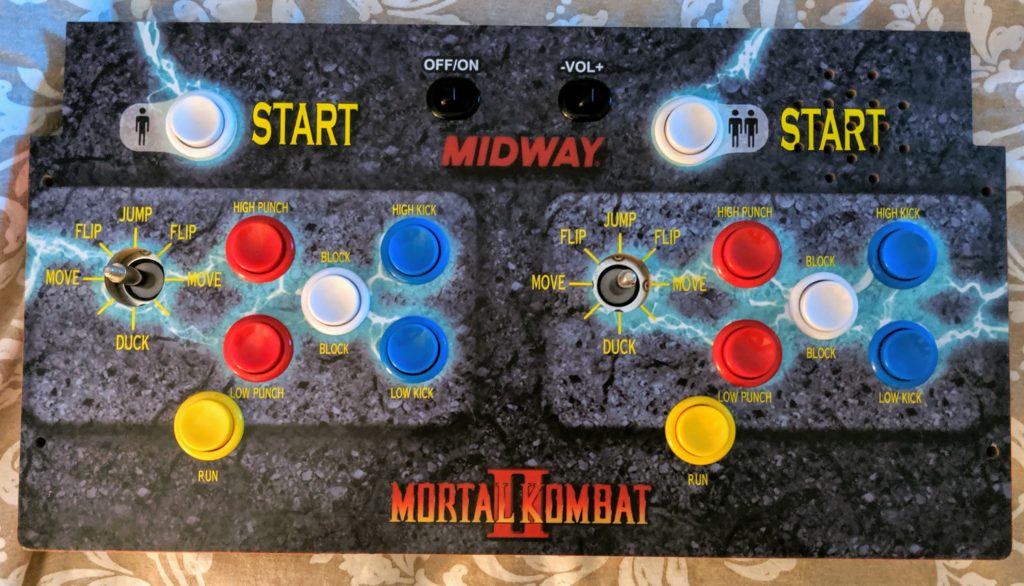
What I’m showing here was done with an Arcade1UP Mortal Kombat but should work for other models with little changes. One of the reasons I choose the Mortal Kombat cabinet was because the number of buttons and their layout.
It’s worth noticing that you don’t necessarily need all these parts or these parts in specific. These were the ones I used and most of them were not bought specifically for this project and I could use them because I had around.
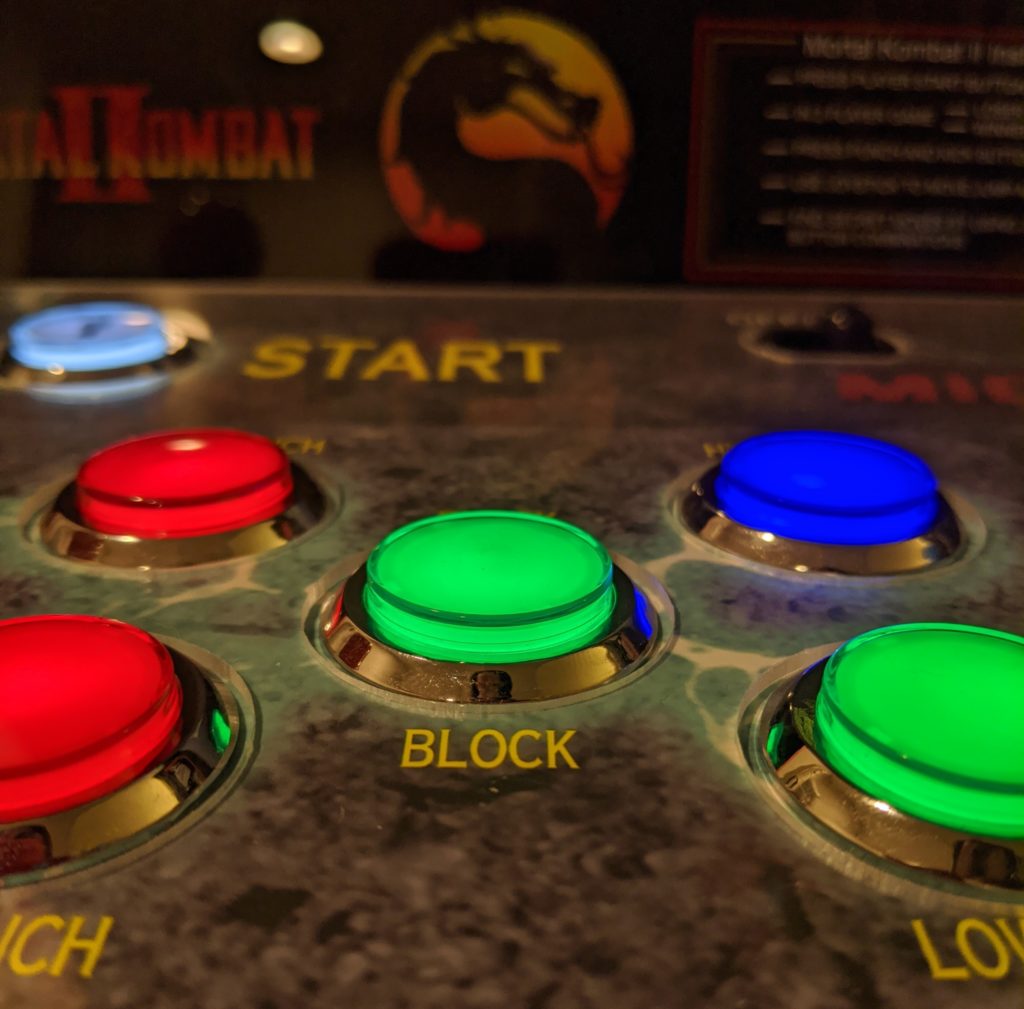
The original buttons on my MK Arcade1Up were a bit ugly and quiet. I want something more flashy and more clickly. I went with this kit on eBay that comes with 20 buttons, joysticks and encoders. The buttons have a LED inside and a round plastic chrome ring around them. They also come with everything necessary to replace the original buttons and they fit in the same 1 â…› ” (2.8575 cm) hole.
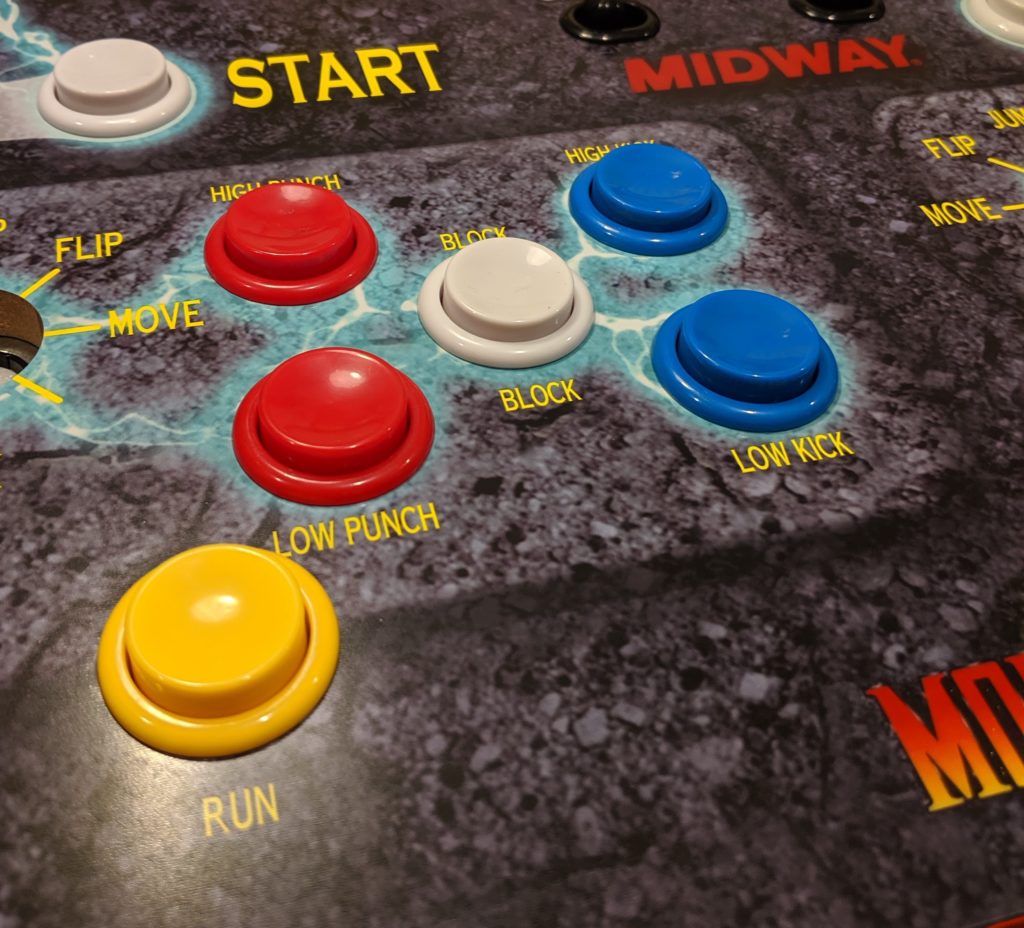
Step 1. Remove the control deck from the cabinet.
Step 2. Remove the protective black plastic case exposing the wires and circuit boards from the control deck.
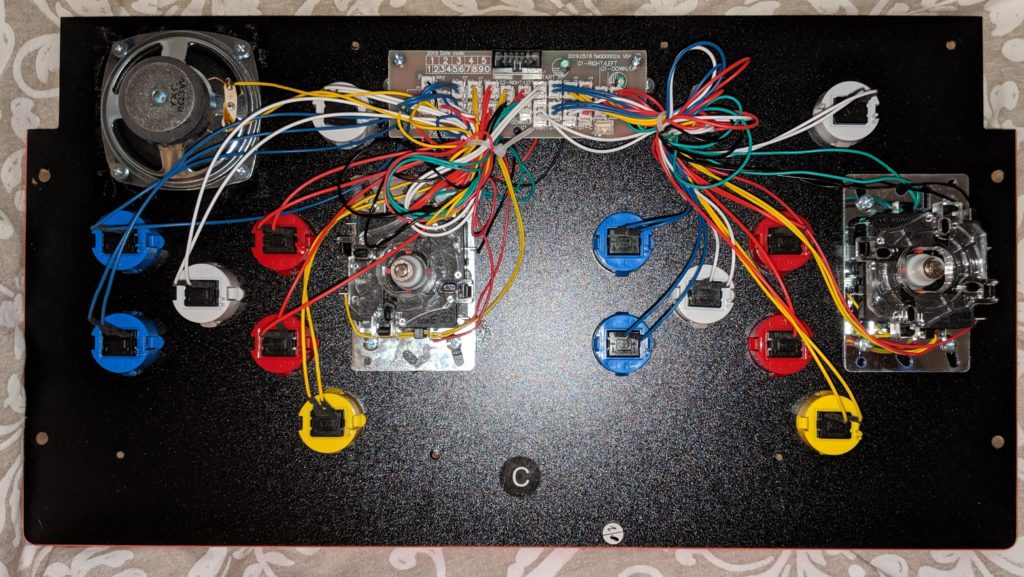
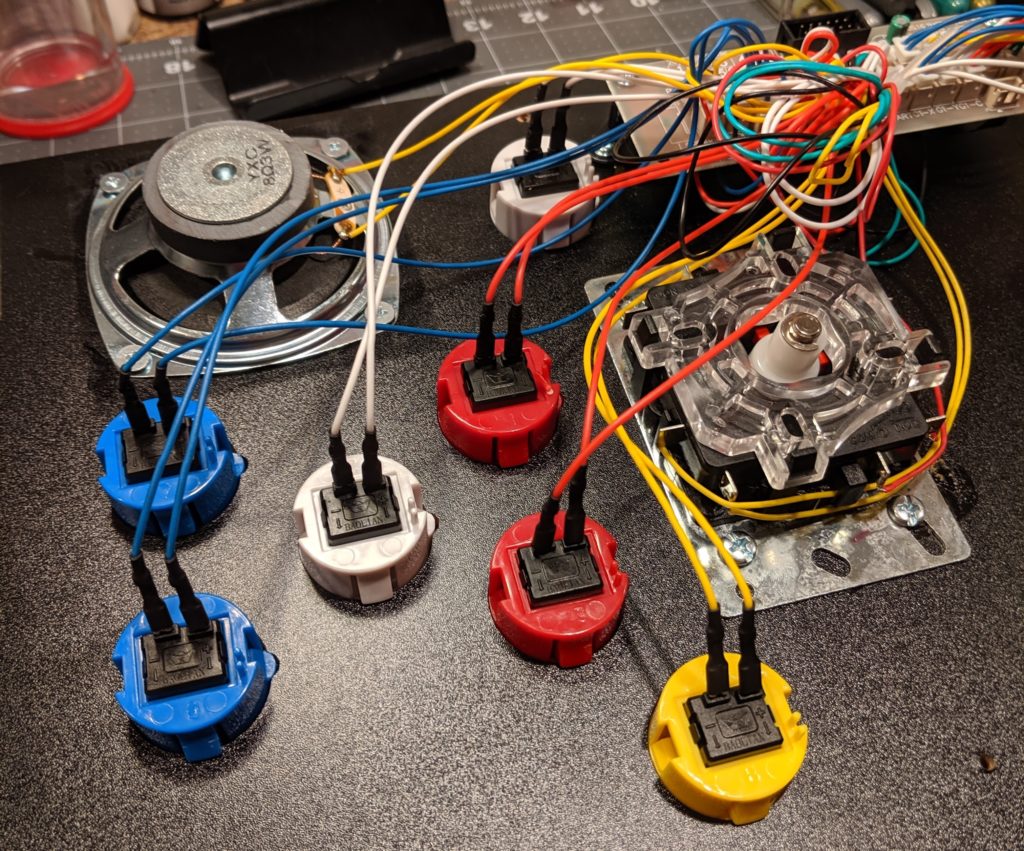
Step 3. Remove all the wires.
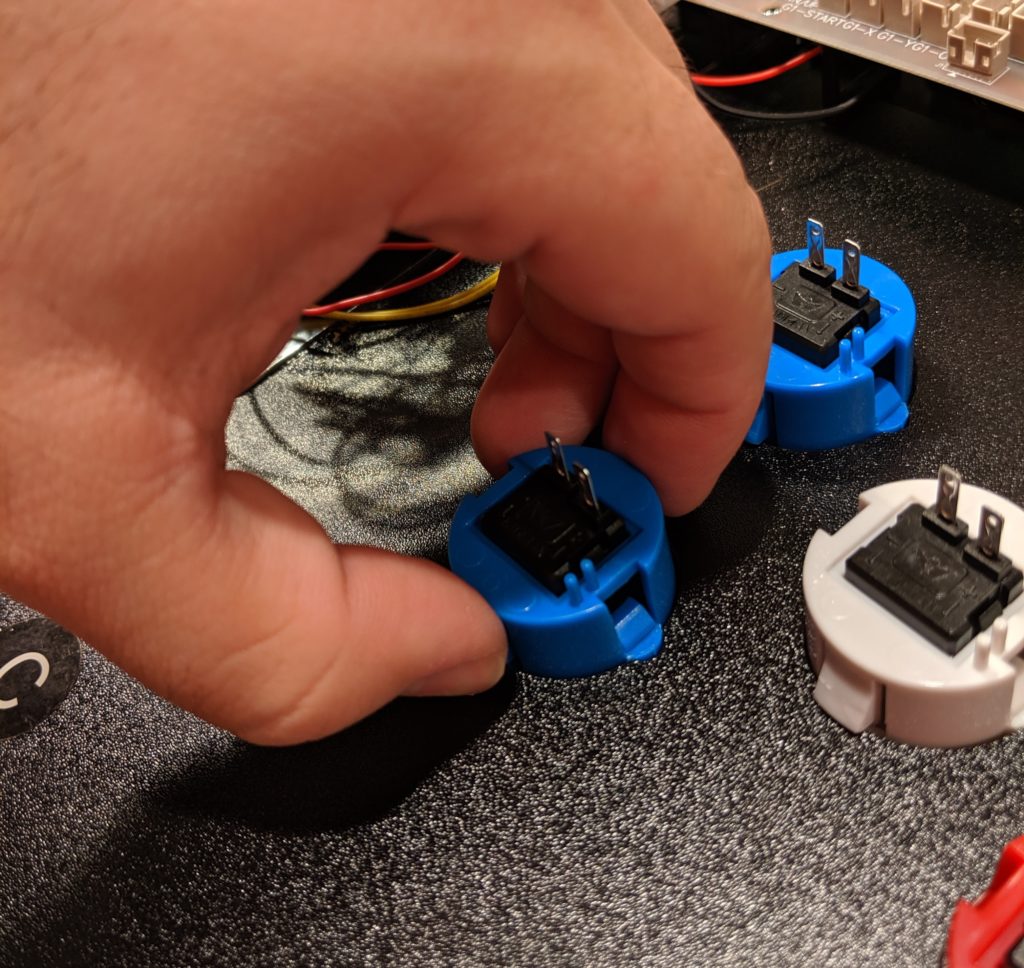
Step 4. Remove the buttons. They are a single piece. You just have to press them in their opposite bulges and they will fit to leave the hole in the front panel.
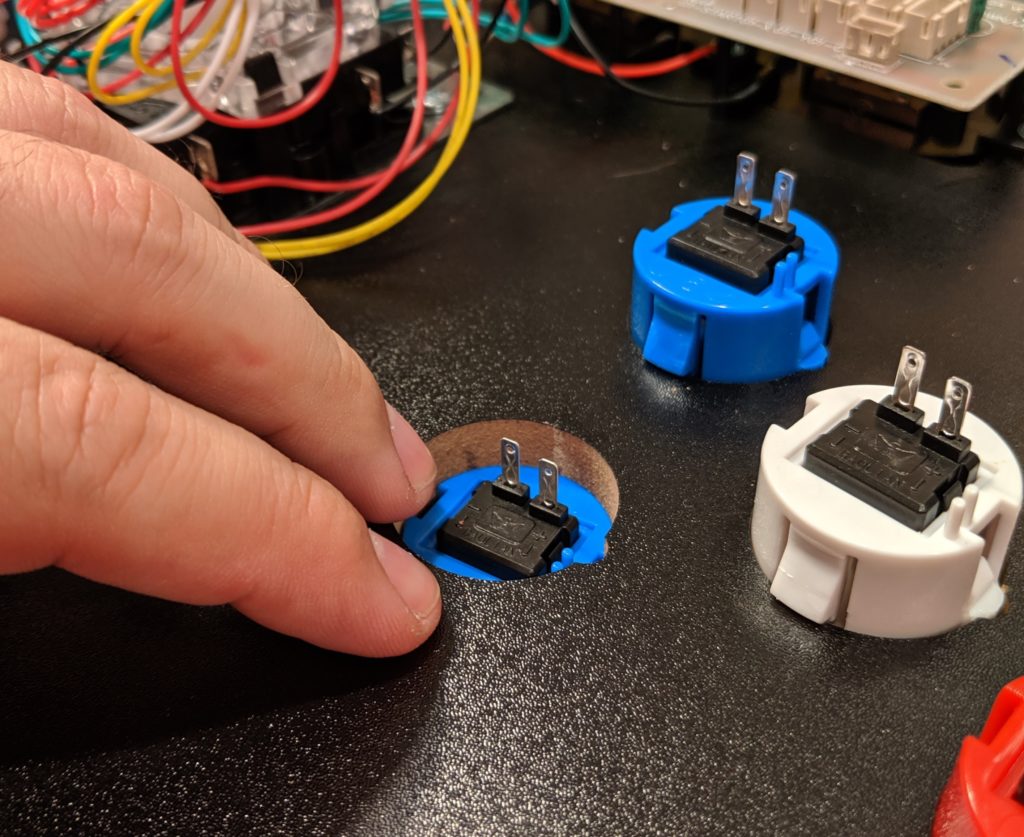
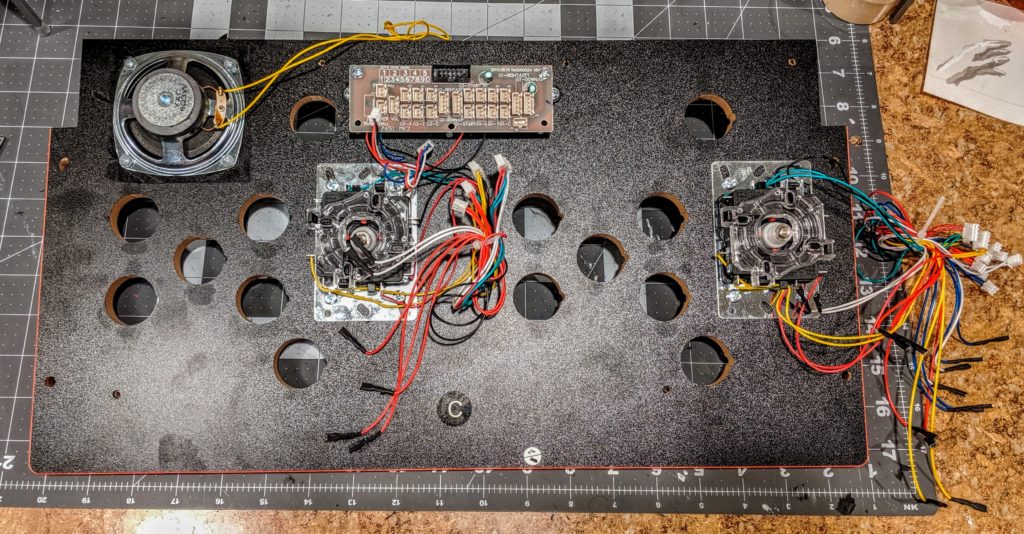
Step 5. Remove the controller board. Just unscrew it and remove it.
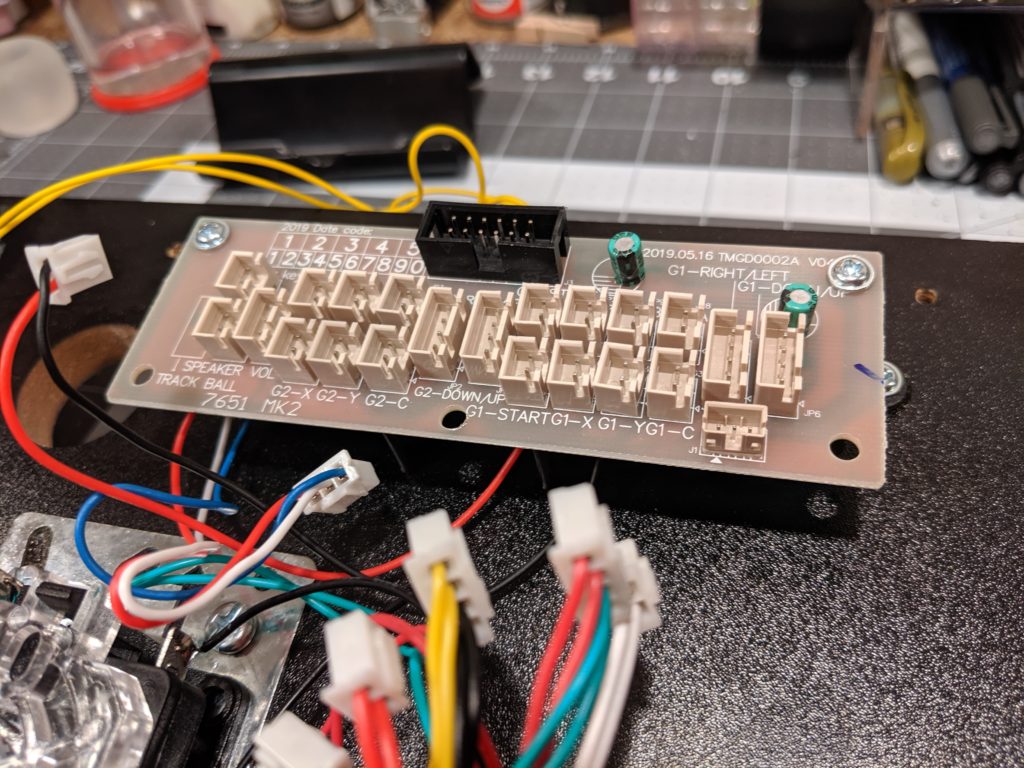
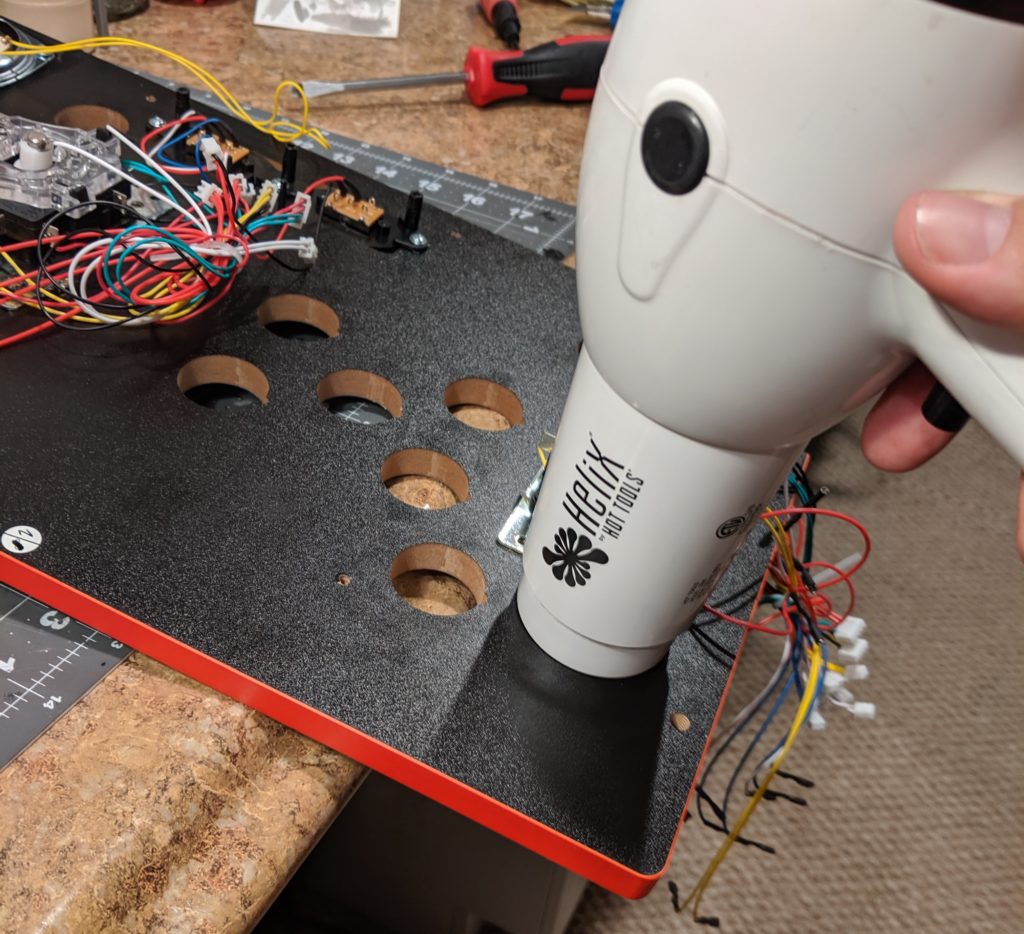
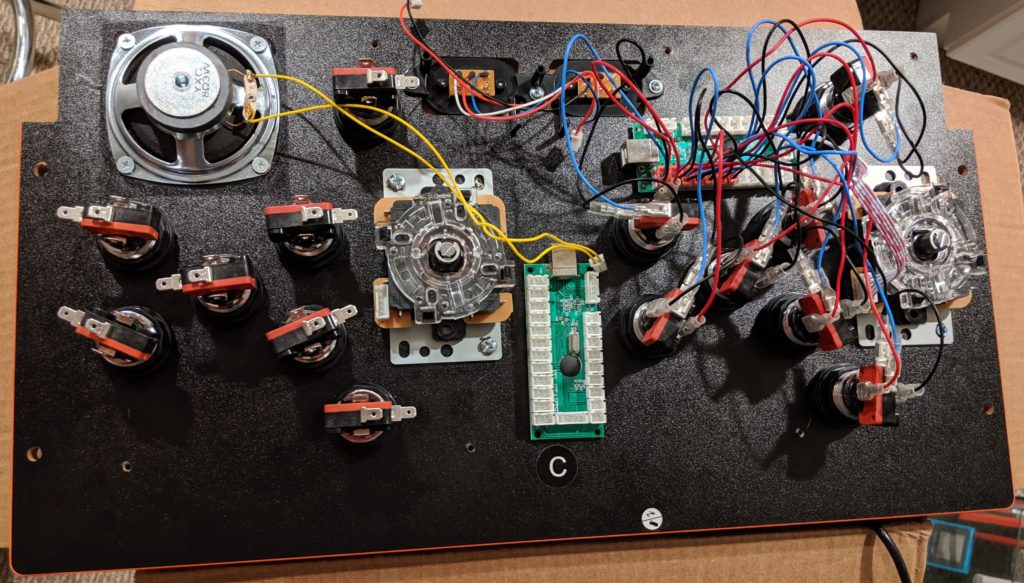
Step 6. Remove the old joysticks. First unscrew the bat top of both joysticks. Remove the screws that connect the metal plate to the board. The metal place is also glued to the board. You need to melt the glue a little so you can pry out these panels out. Here you can use a heat gun or a hair drier.
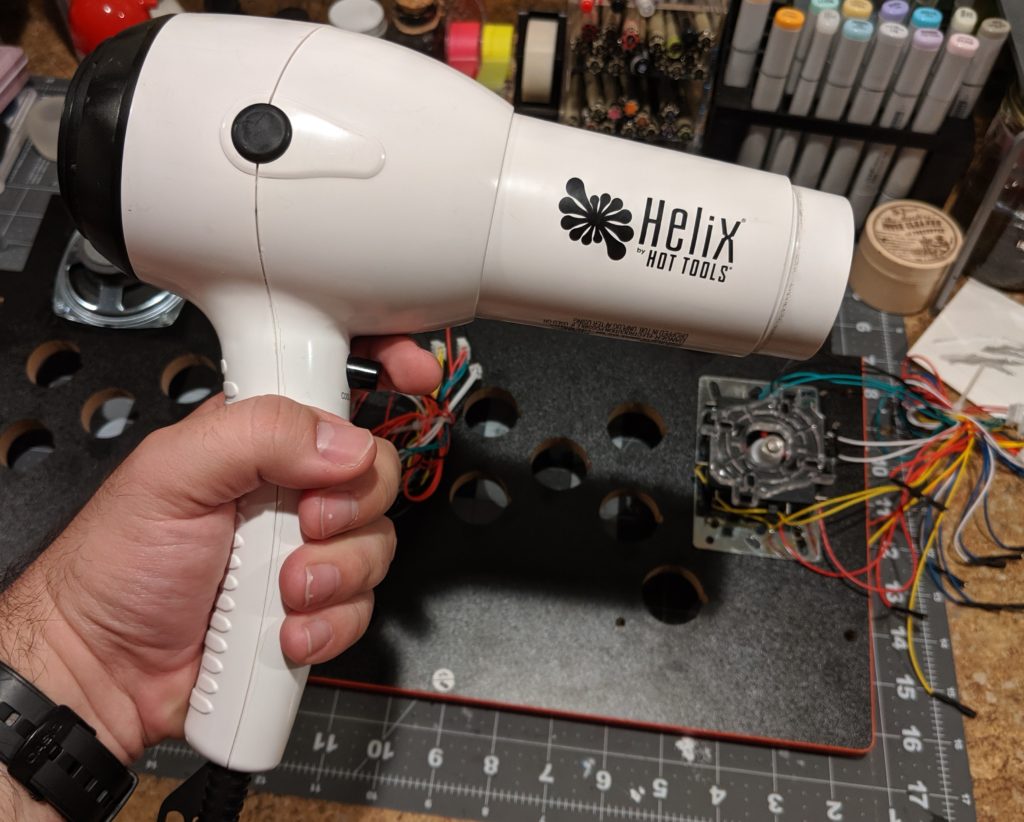
Blow some hot air directly in the metal panel. The smell of the carcinogenic fumes you are breathing means the glue is now melting.
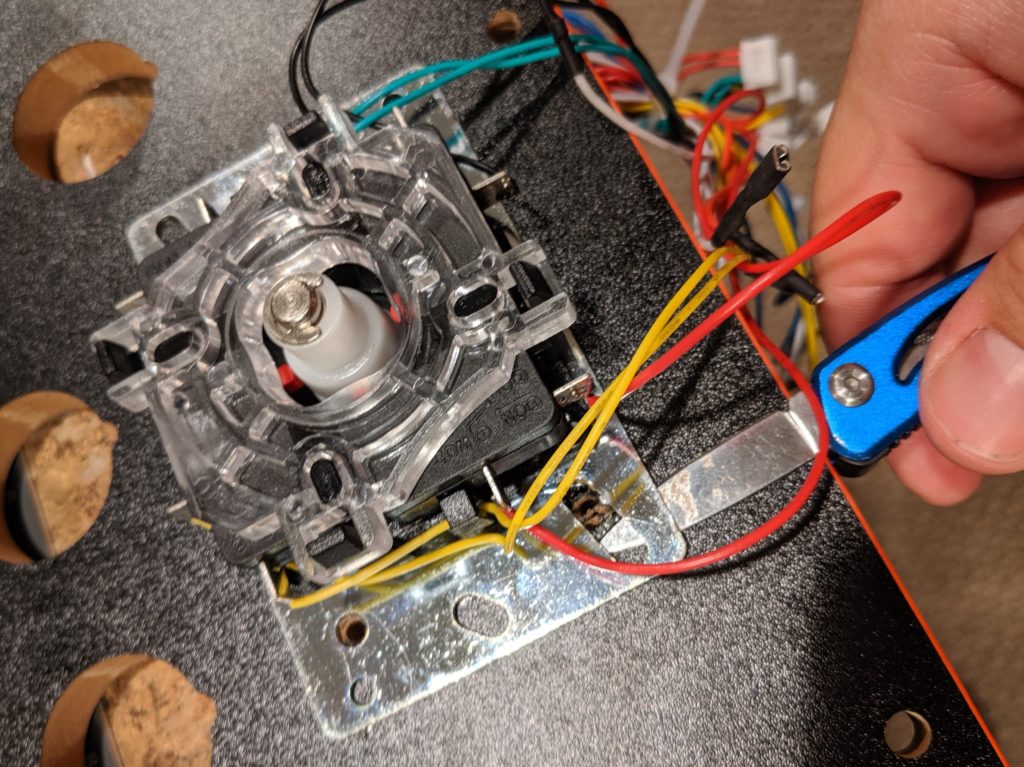
Use a knife or a screwdriver to pry out the metal plate. You can heat a little and pry a little until the whole plate is out.
For now I’m not removing the speaker and switches.
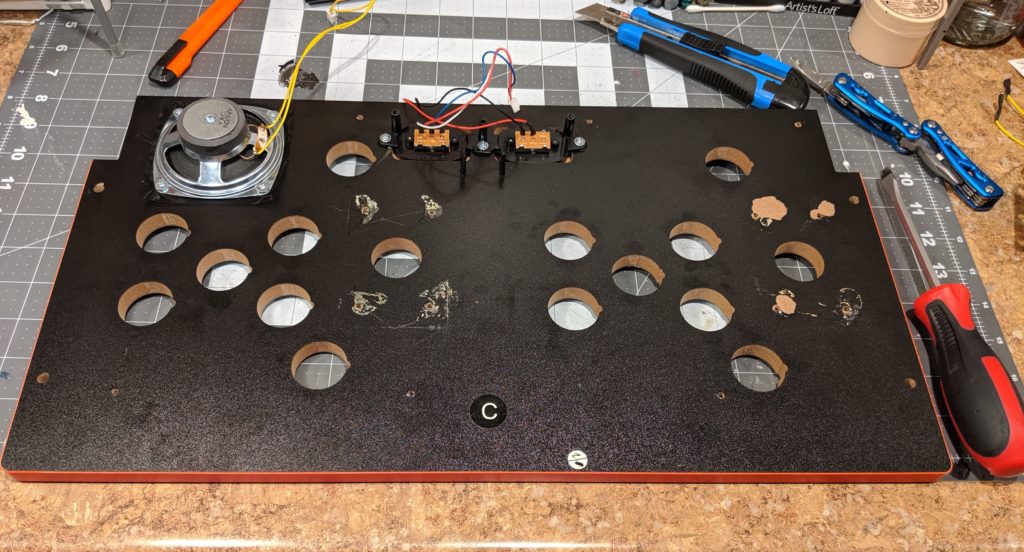
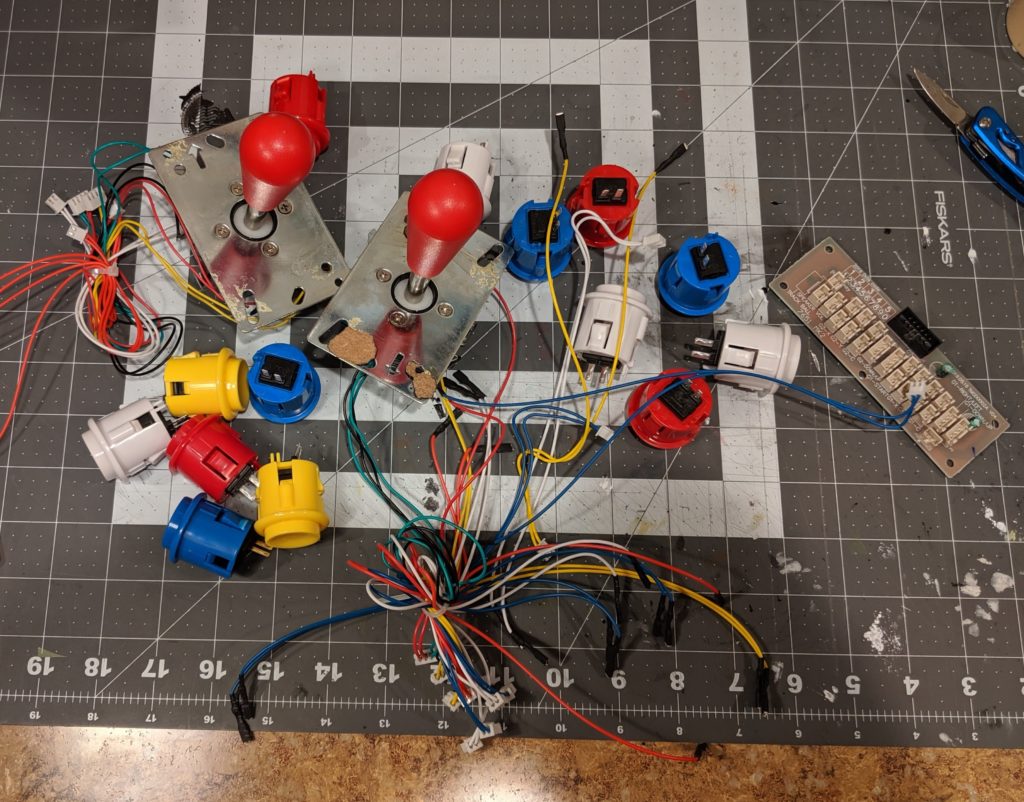
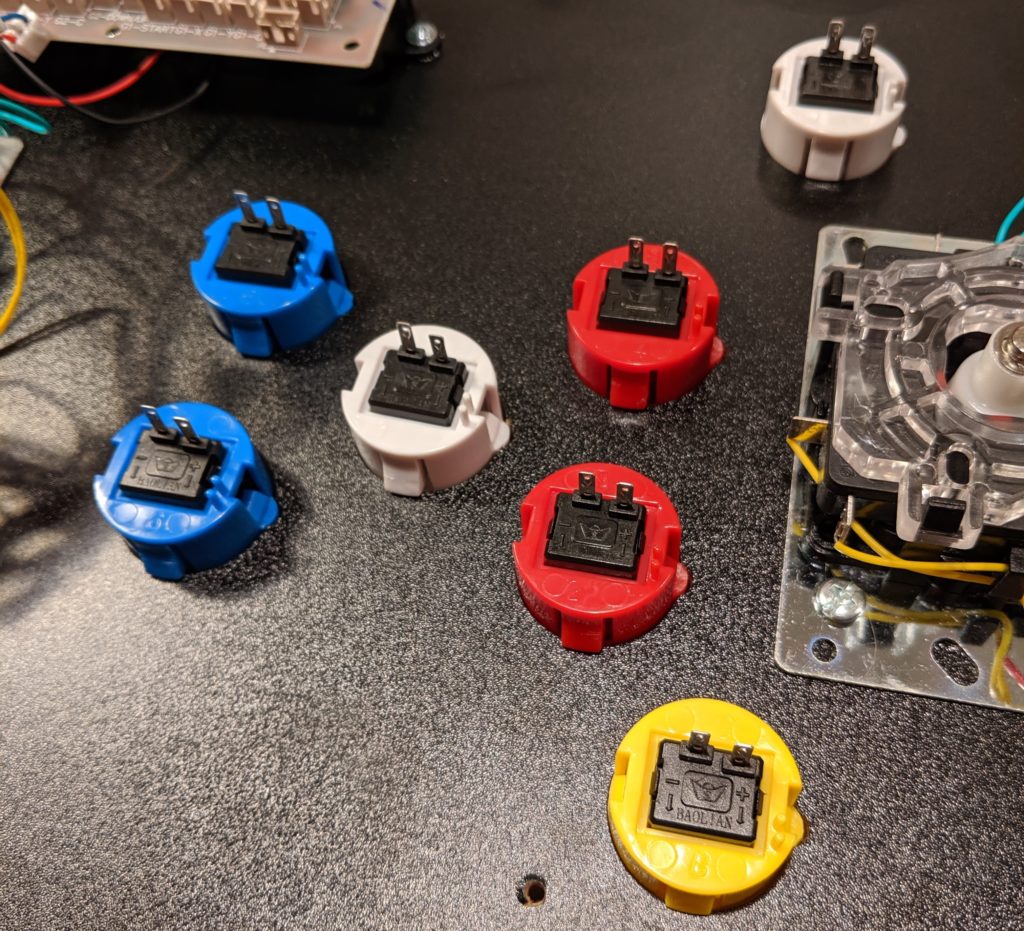
Step 7. Install the new buttons. These buttons are a little bit different from the original ones. They have two pieces, the mechanical part and the connectors and LED. You can separate them by twisting. They also have a plastic nut that help fix them to the board.
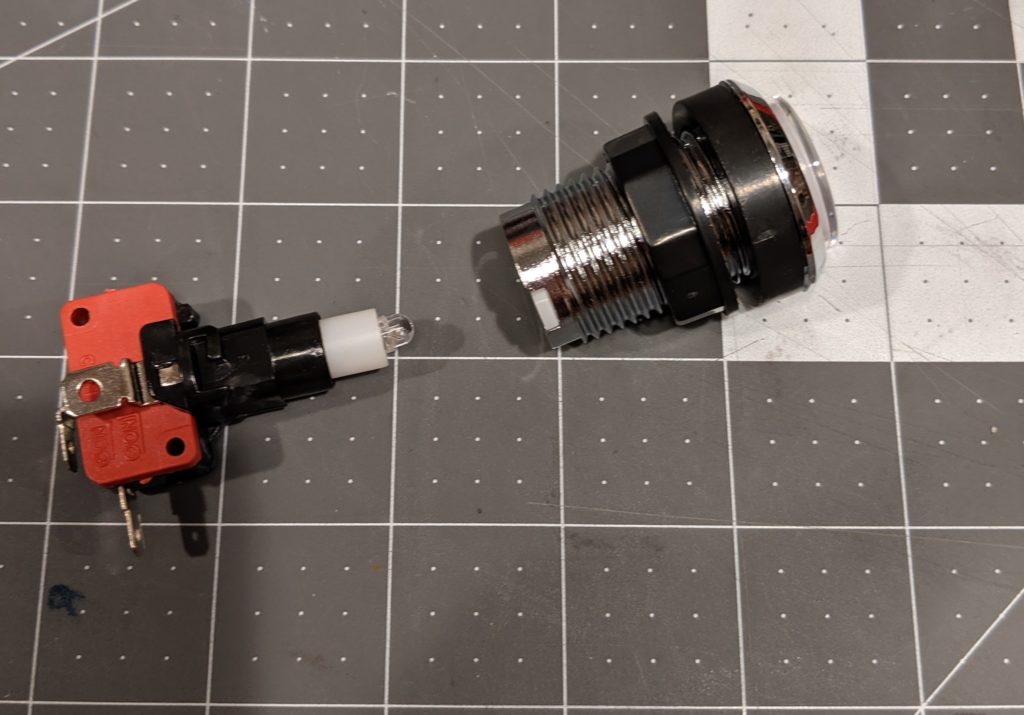
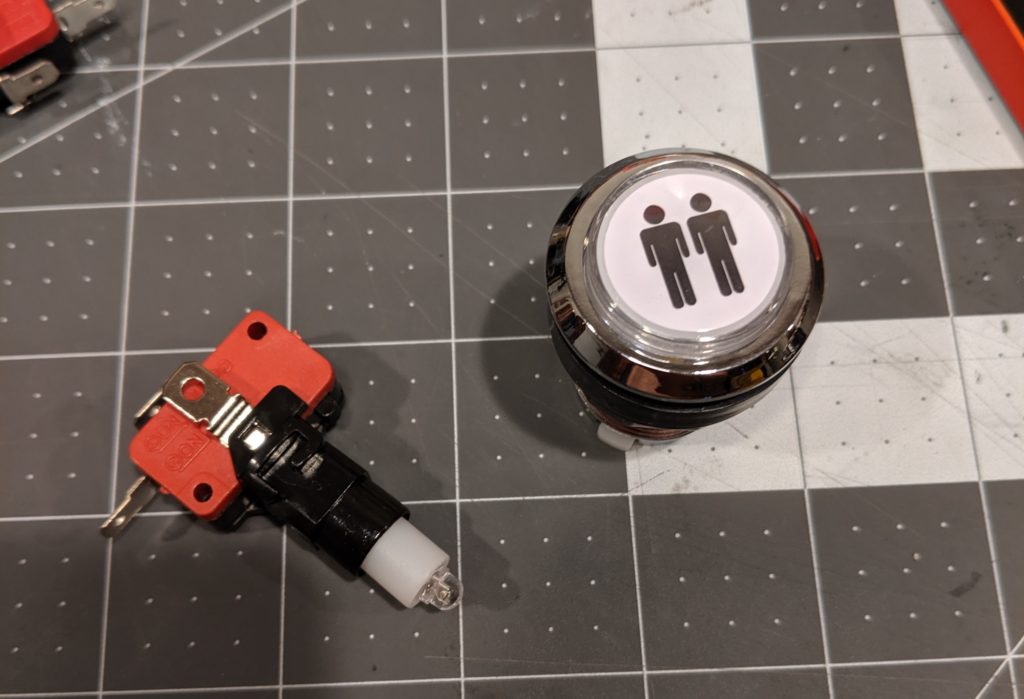
At this step you have the option to choose the color schema for your buttons. I choose something symmetrical. The button assignment is done later in software.
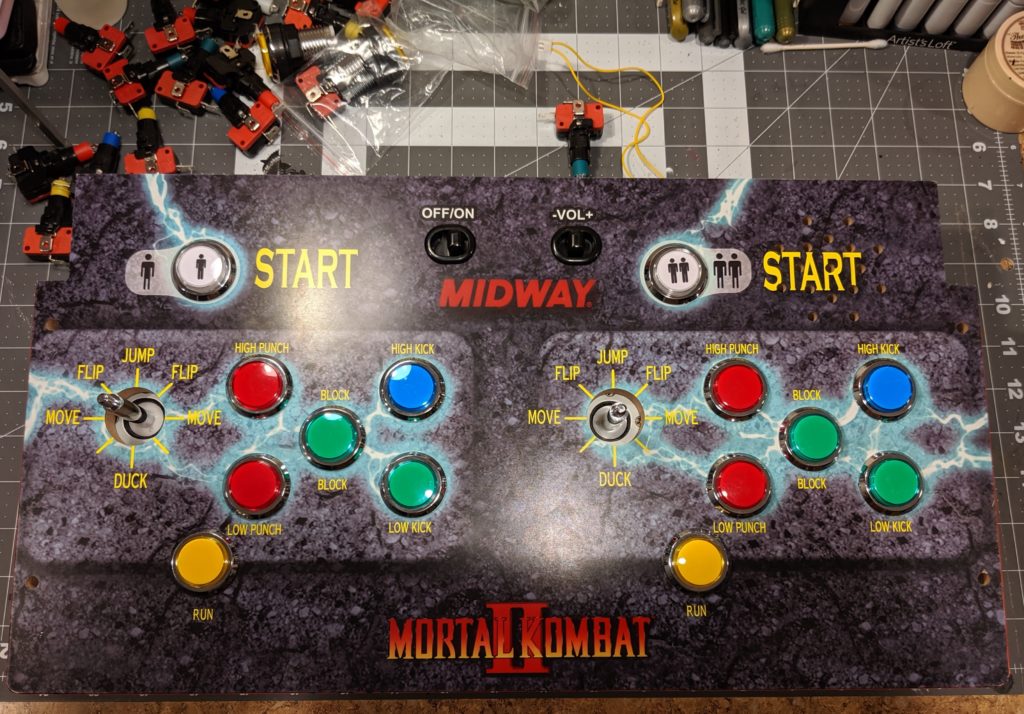
Step 8: Install the joysticks. Remove the bat top from the joystick. Insert it into the panel. Put the screws.
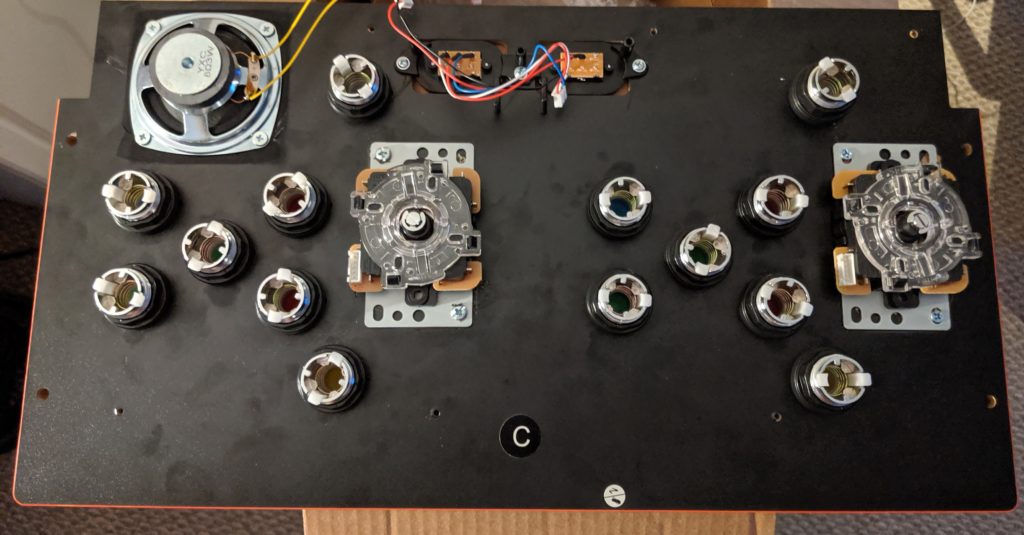
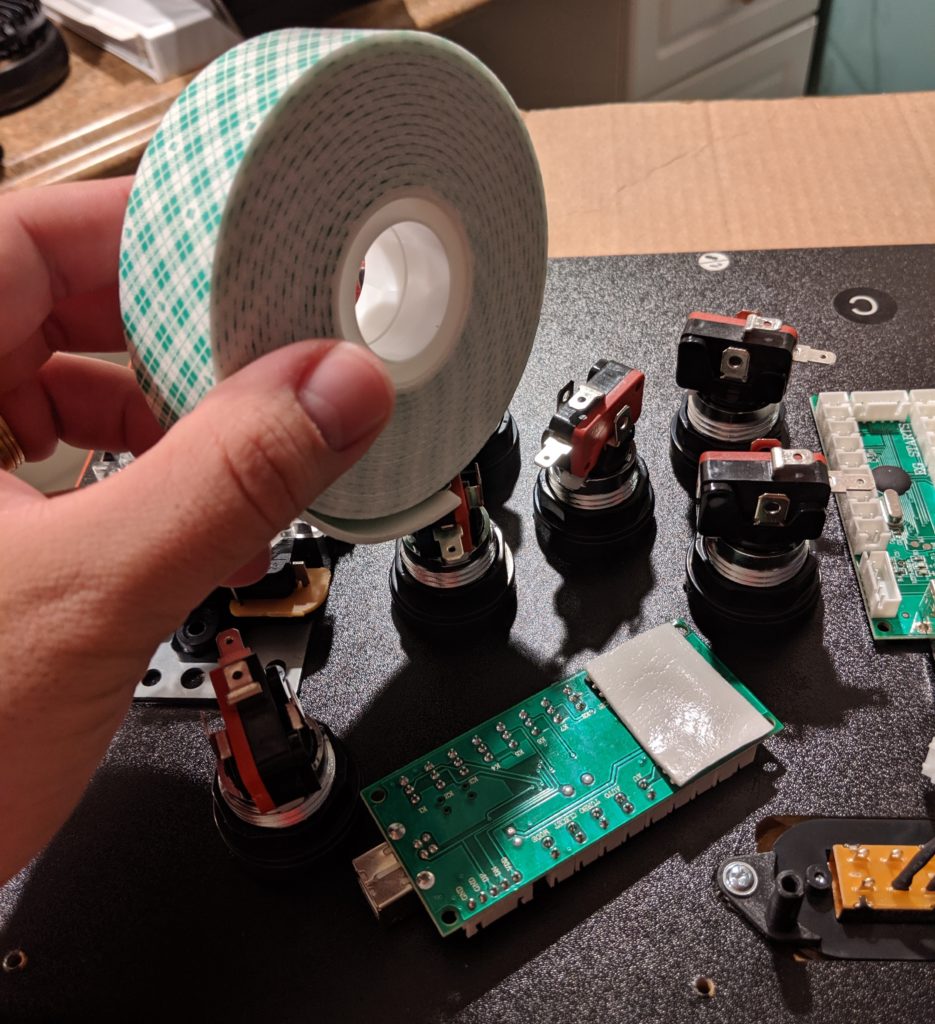
Step 9. Mount the USB control boards. I used Scotch Permanent Mounting Tape for this. Little screws would also do the job. When choosing where to mount them keep in mind the distance between the board and the buttons and also the USB wires.
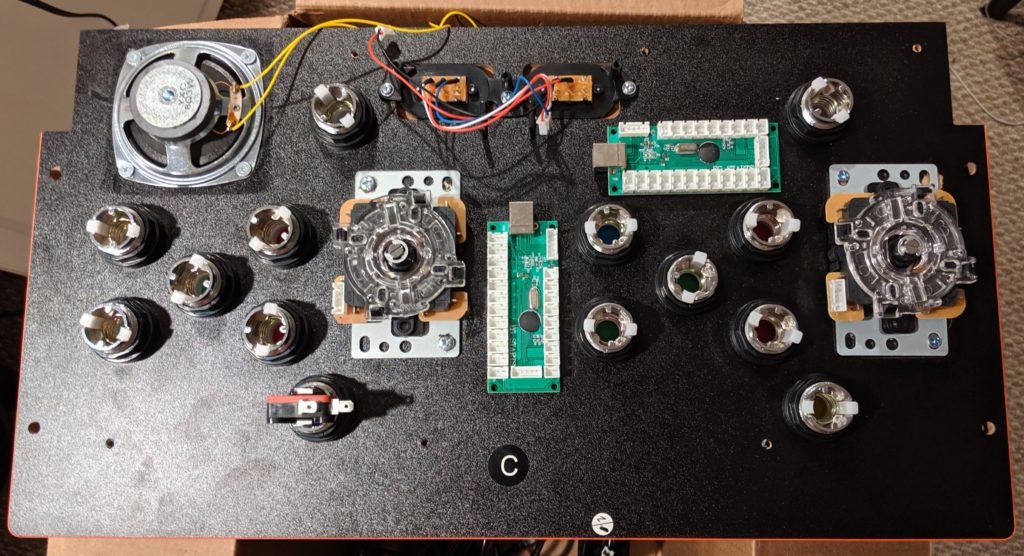
Step 10. Assemble the other end of the buttons. Just twist them in place.
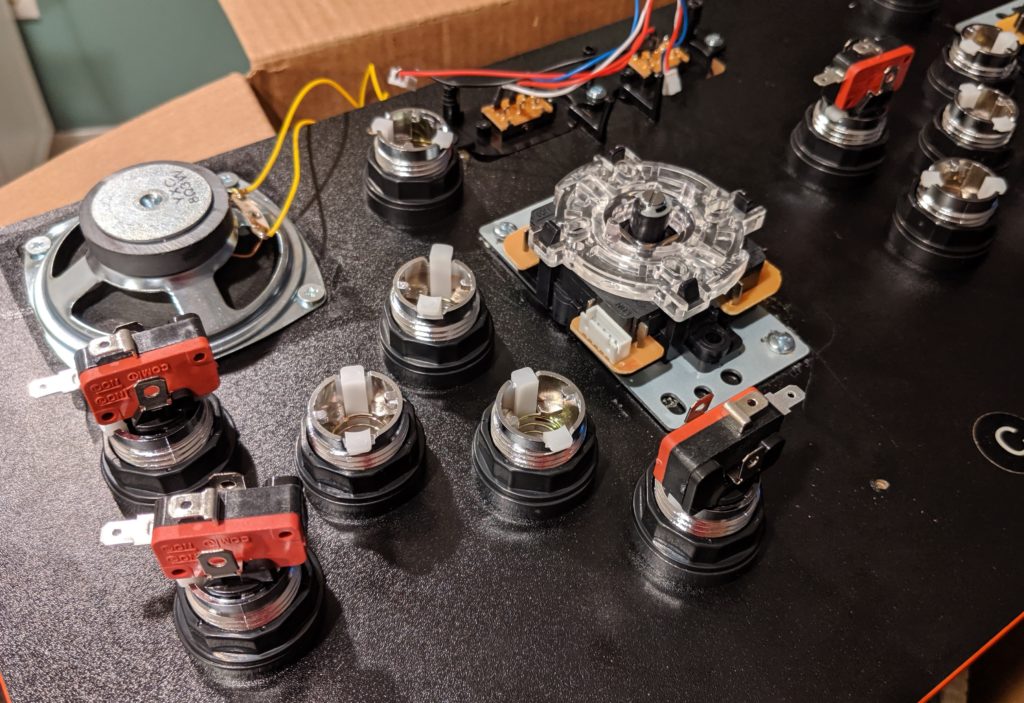
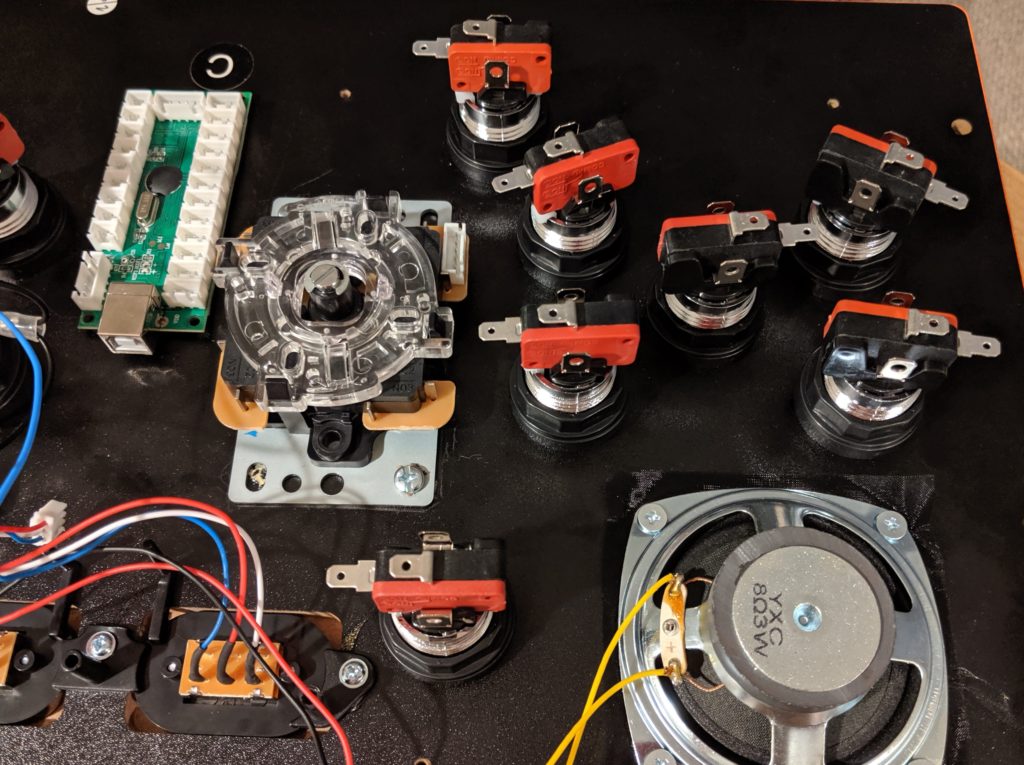
Step 11. Install the wires. Each button will expose four connectors. Check your manual for the proper color schema for the wires. They are different depending on the kit you choose and the kit you get.
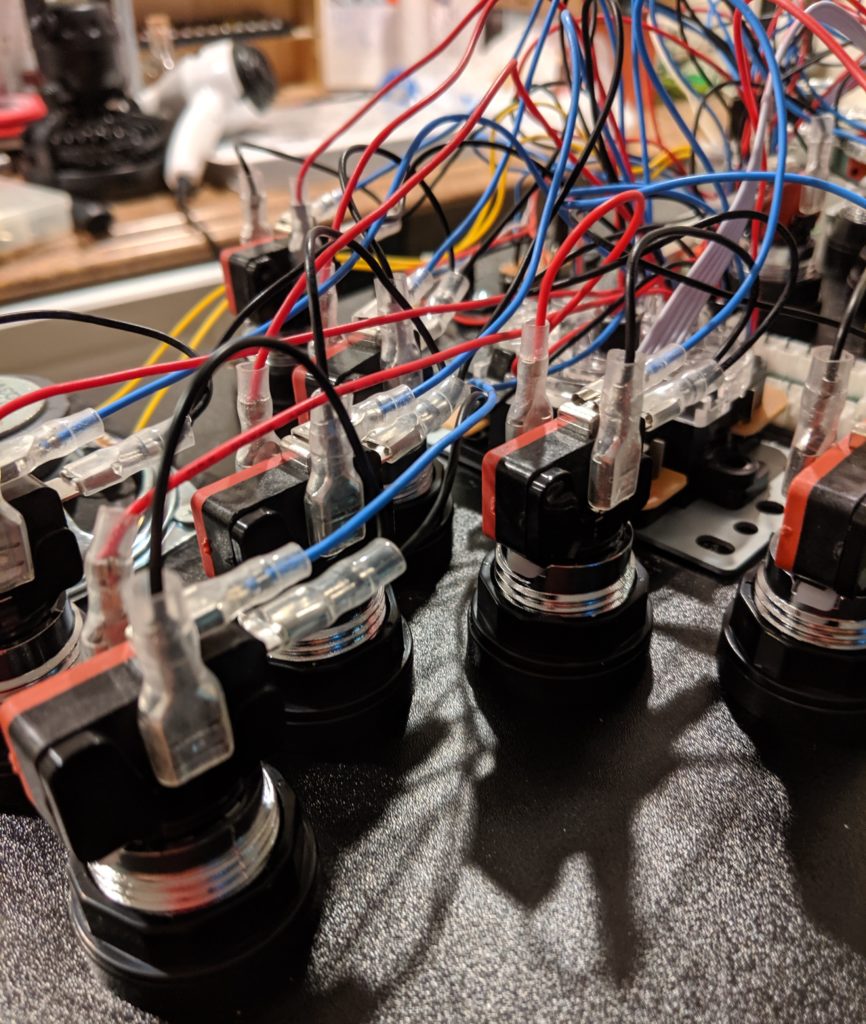
The order that you put the connectors in the board is not really important because the configuration will be done later in software.
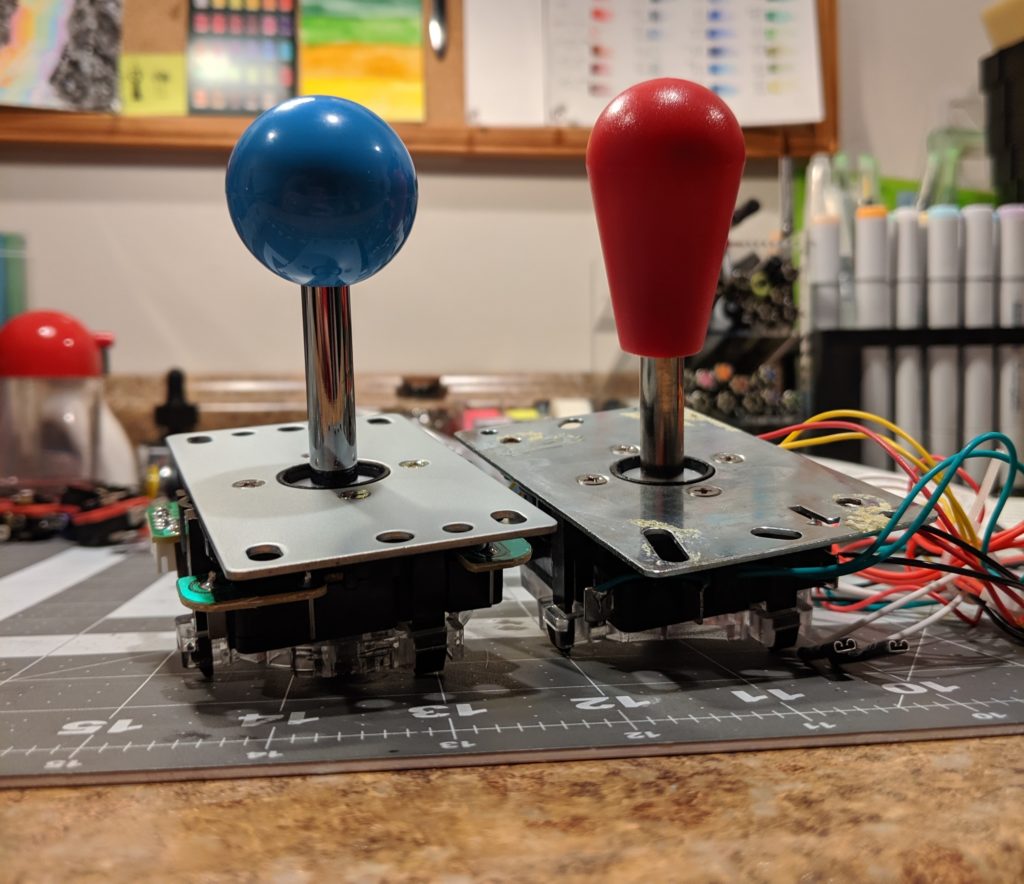
Step 12. Screw the joystick handle back. You can use the new joystick handle but can reuse the old one as well. The new joystick came with a balltop handle (left) and the original joystick had a battop handle. The handle is fixed screwing. You can easily change it latter without need of any tools.
Step 13. Testing everything. I this point I would recommend putting the protective plastic case back but secured by only a few screws because you will very likely reopen it soon to fix some buttons.
Plug the two USB cables from the encoding boards to a computer.
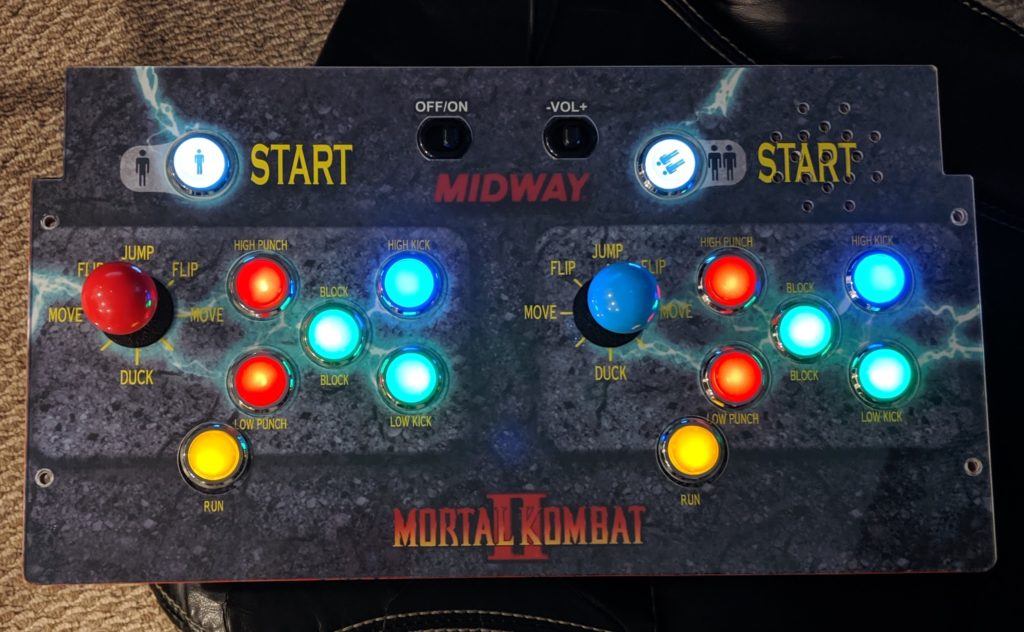
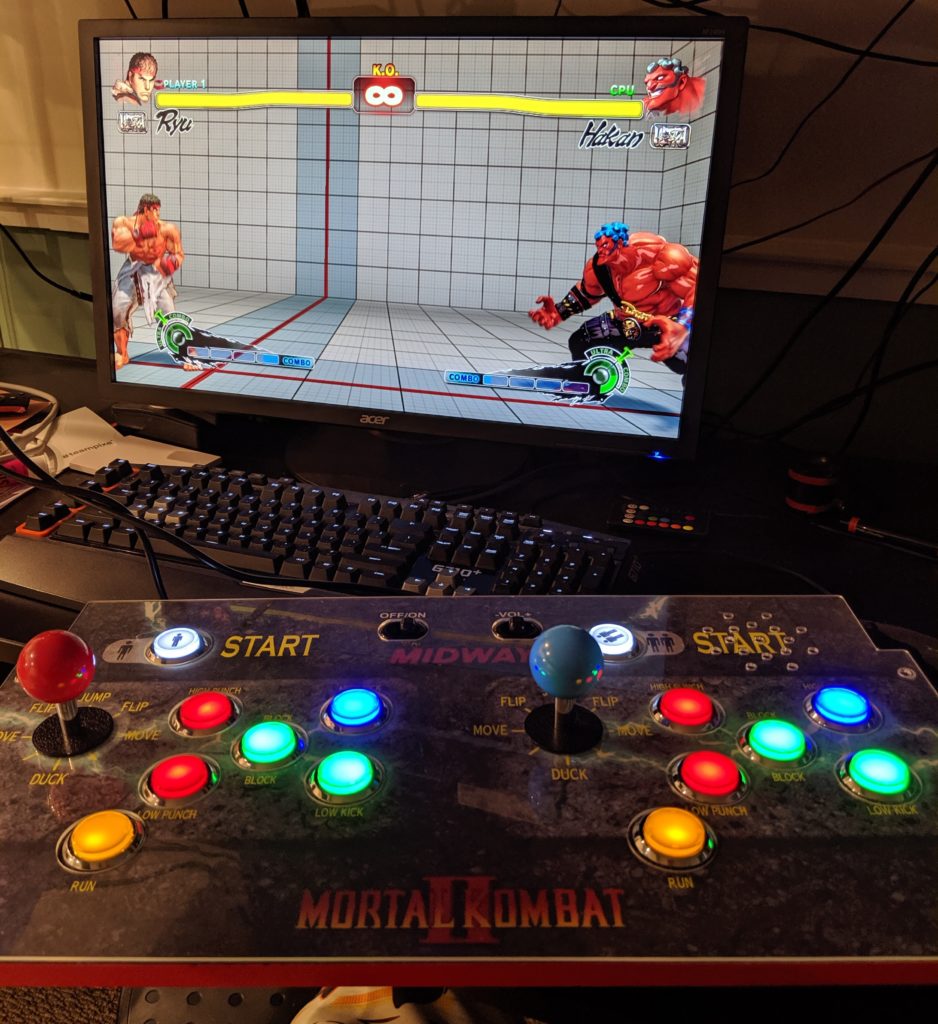
The first test is to check if the lights. If a light is not on it is probably because the wires are not correctly connected. If it is not that, then the LED could be failing. My kit came with some extra LEDs and components (but it was not necessary so far).
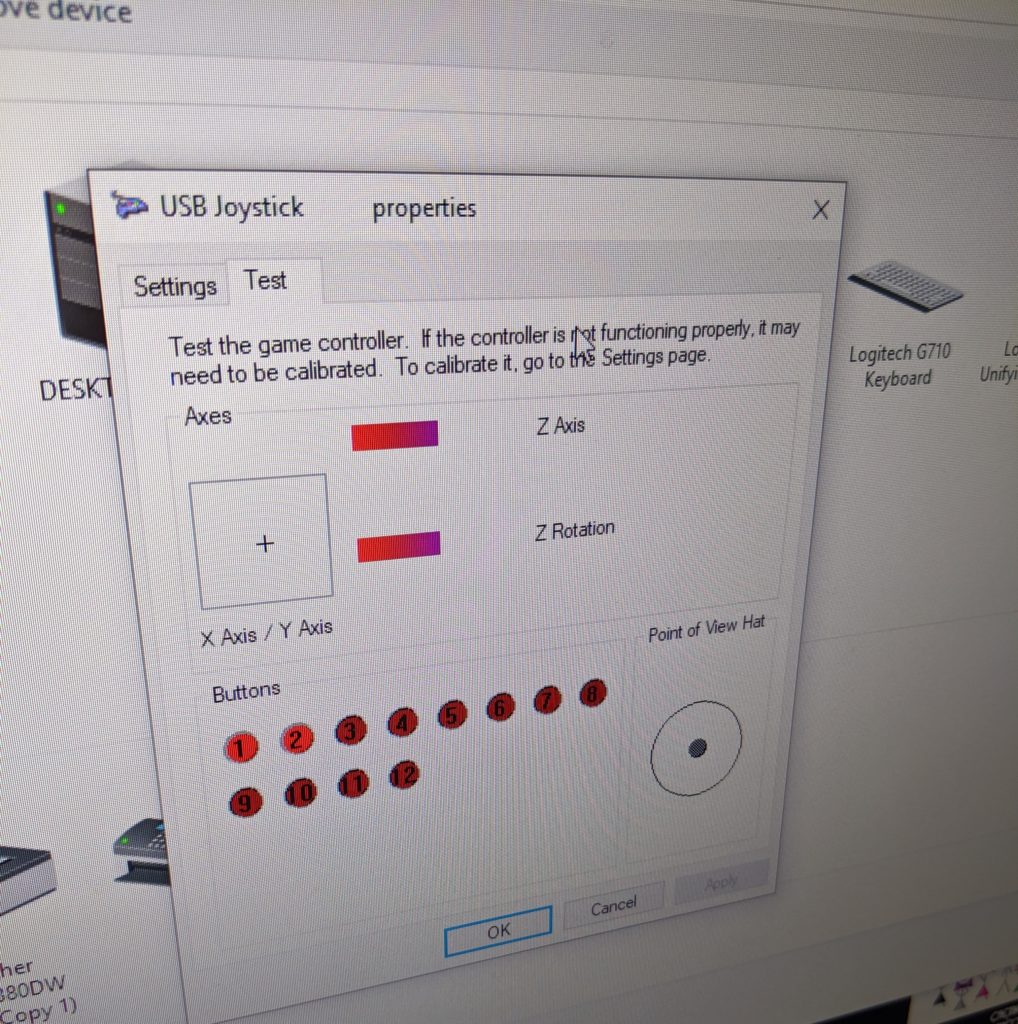
You can also test the whole control deck as two completely functional controls with the PC. Windows should auto-detect the boards as two USB joysticks.
The original monitor from an Arcade1UP cannot be directly used with a video cable like HDMI. I’m using this kit for this. Make sure the code in the back of the Arcade1UP monitor matches the one in the description of the product.
Step 1. Remove the metal box case with the original board from the monitor. This case holds the mother board of the original Arcade1UP. Remove the cables and remove it from the cabinet.
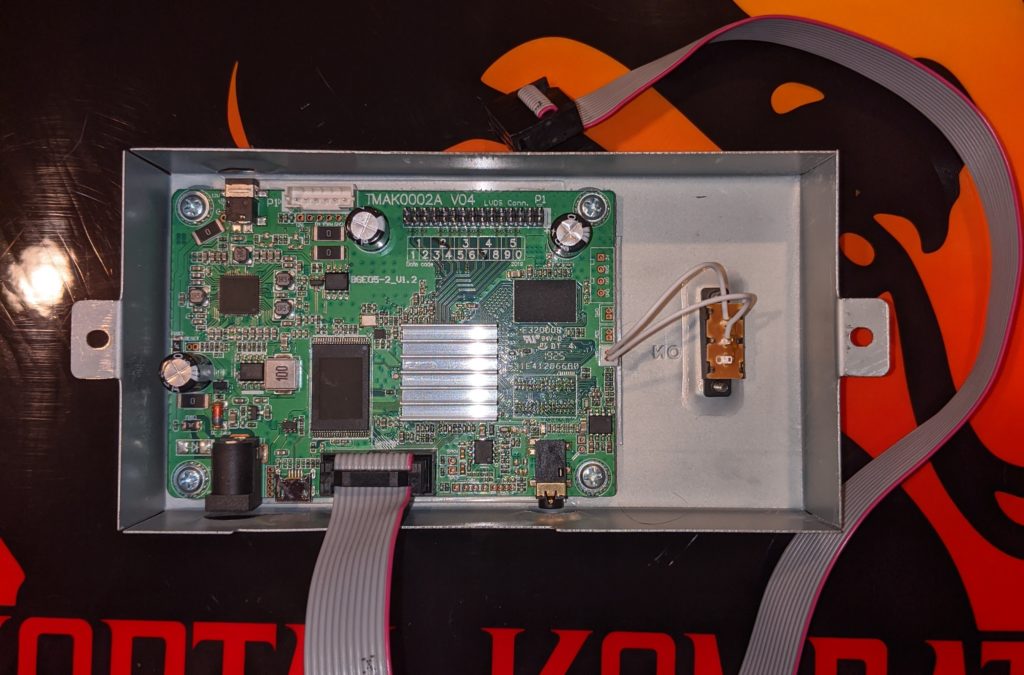
Step 2. Install the new board. I put some tape in the back metal panel of the monitor and used double face tape to fix the new controller board.
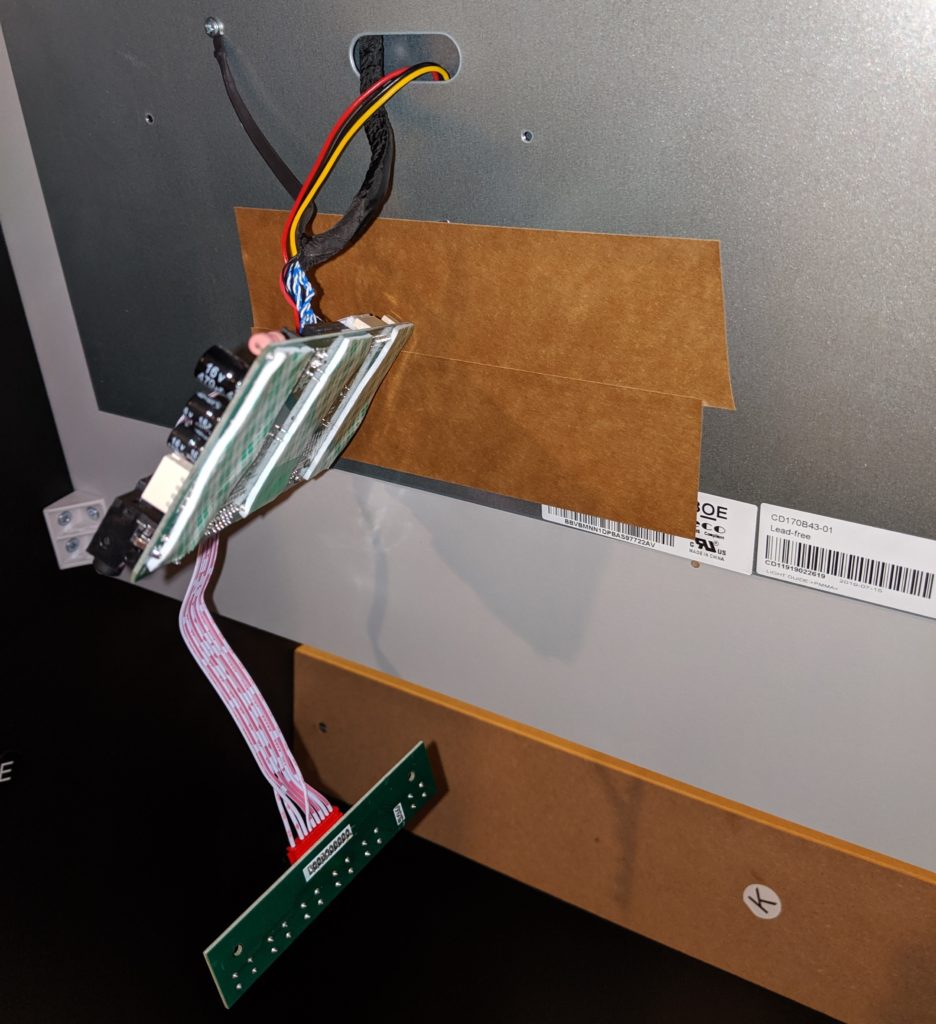
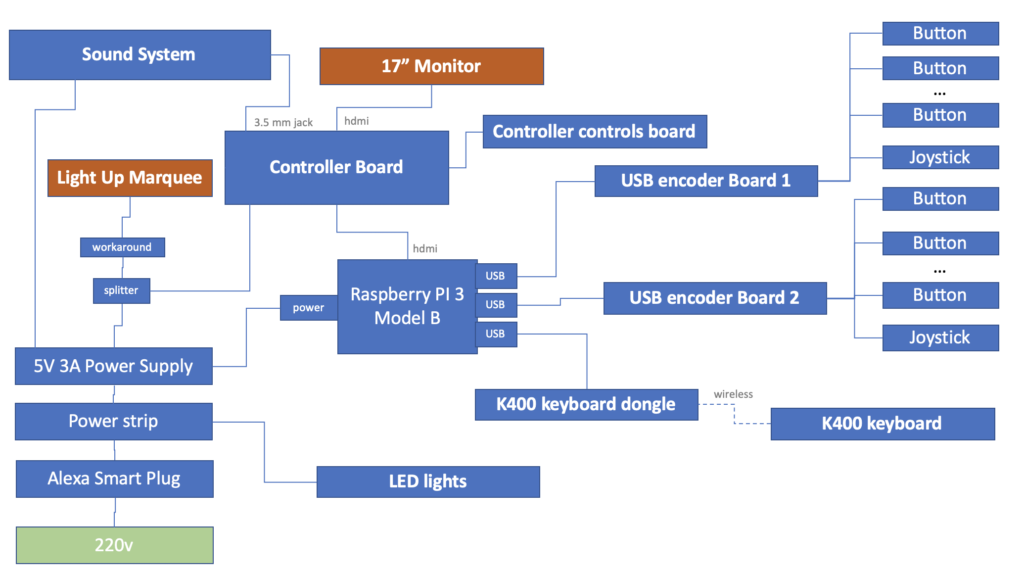
The power supply is the same from the original board. This board now receives a video input (HDMI, VGA, VGI) and displays it in the monitor. The smaller board with 6 buttons are like buttons in a TV where you can change volume, brightness, etc.
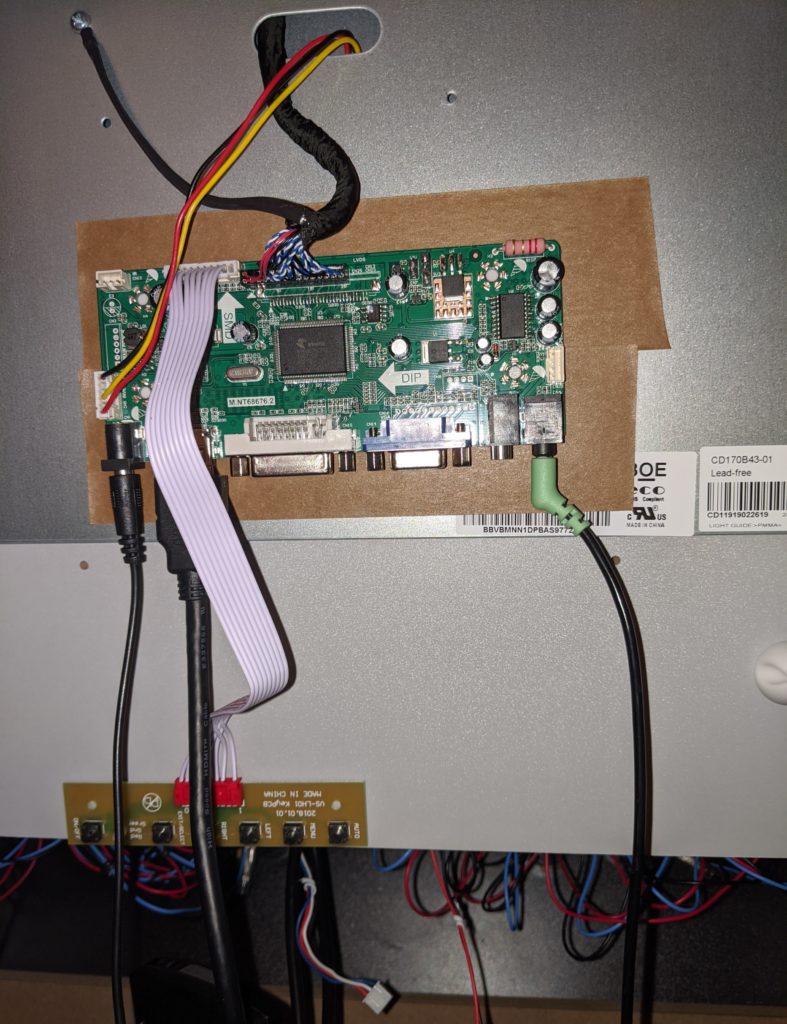
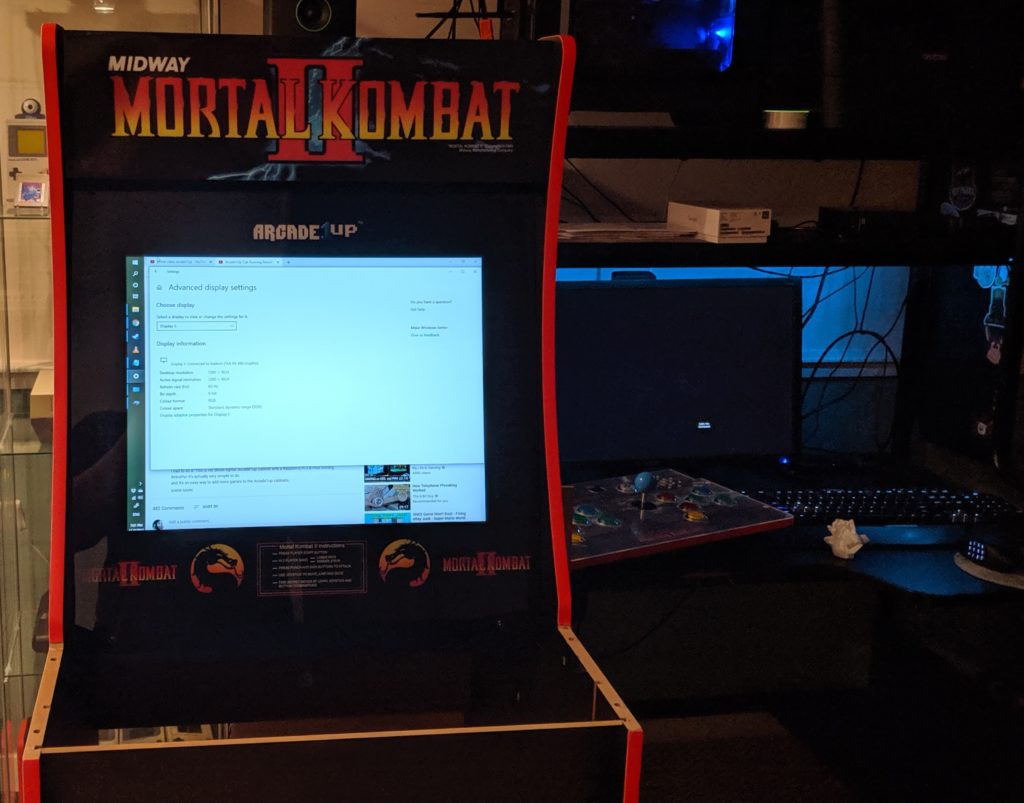
Step 3. Test you can display external video in this monitor. Just grab an HDMI cable from your PC and plug into the controller board. It should just display it like an external monitor.
A Raspberry Pi is pretty much a tiny Linux computer. It has everything on a single package (memory, CPU, motherboard, etc). I’m using RetroPie as a distribution. Retropie comes with everything you need but the actual game ROMs.
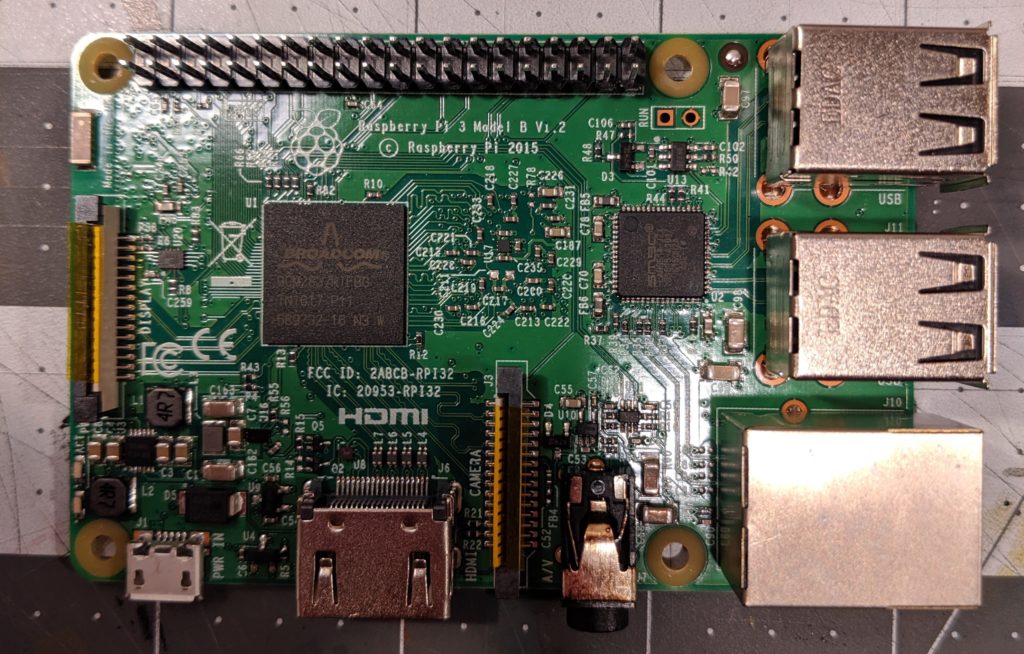
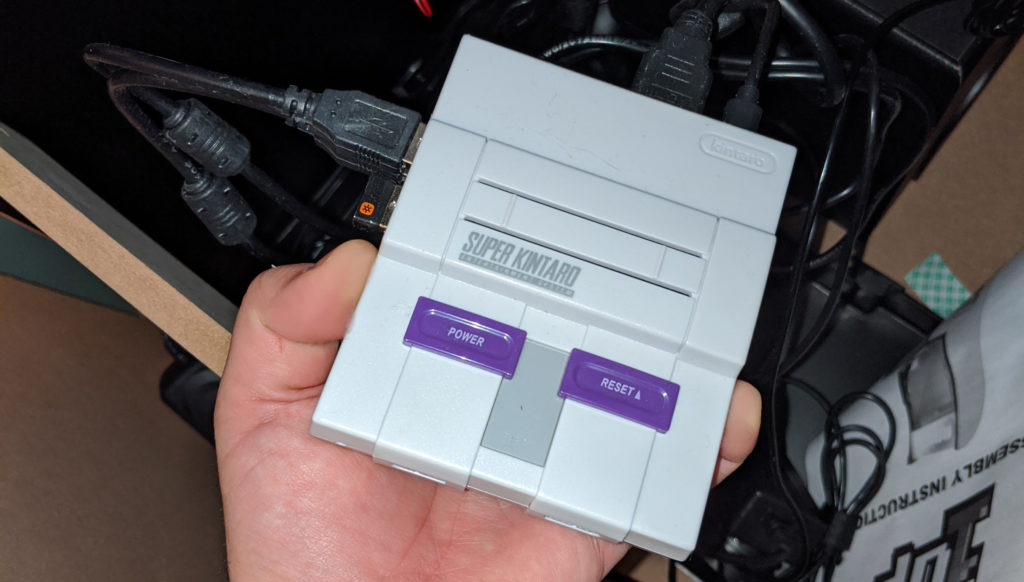
When I was building this I noticed that the Raspberry Pi 3 had the best compatibility and was working well with most of emulators and games. This is likely changing in the future so if I was building another machine now I would check this again. I already had a RPi 3B with a case (Kintaro Super Kuma) from another project.
For now I’m not going to put here fine grained details on the RPi installation and configuration. In short, you need to download RetroPie, make a bootable SD card with it, stick it into the RPi and boot it. There are many ways to add games but the most practical one I found was via network using SMB (Samba) at “\\RETROPIE “. Making sure the files are in the correct folders for each emulator. For example rooms for Game Boy should be at “/home/pi/RetroPie/roms/gb/” and for Neo Geo at “/home/pi/RetroPie/roms/neogeo/”.
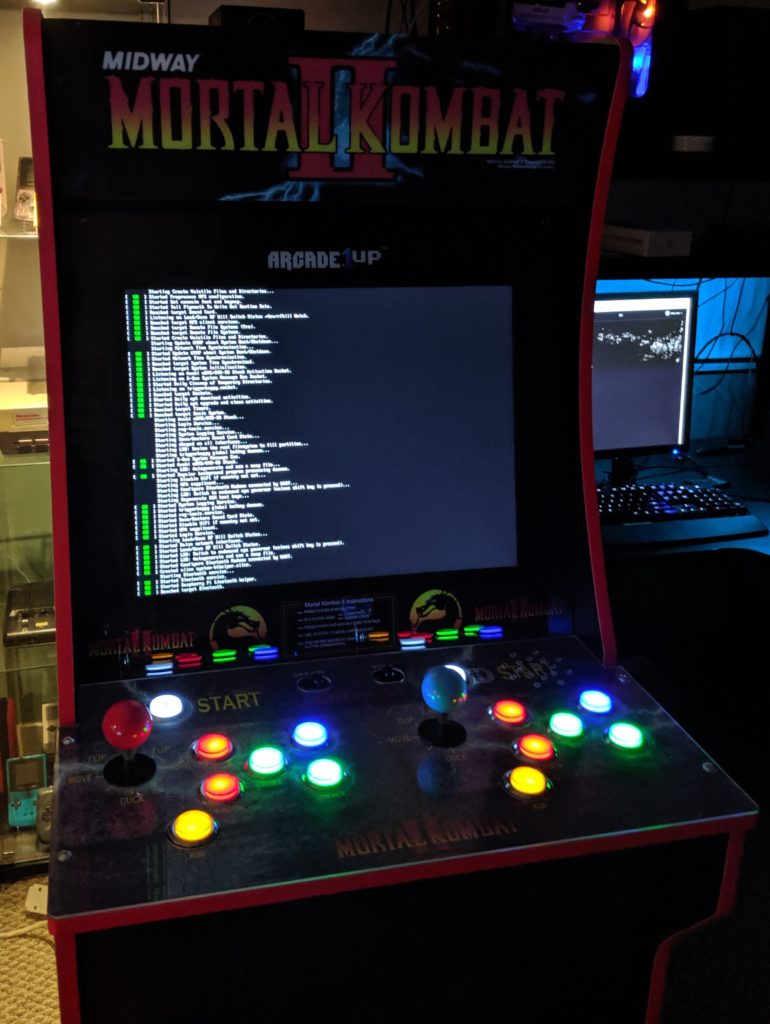
To make the whole process easier I highly recommend using a wireless keyboard like the Logitech K400 Plus that already comes with a touchpad. It’s small, takes only a USB slot and is great keyboard to have around for projects like this. You can press Ctrl + Alt + F2 to access the Raspberry pi terminal (F3 to F6 for TTY3 to TTY6 respectively). Retropie default user is pi and default password is raspberry.
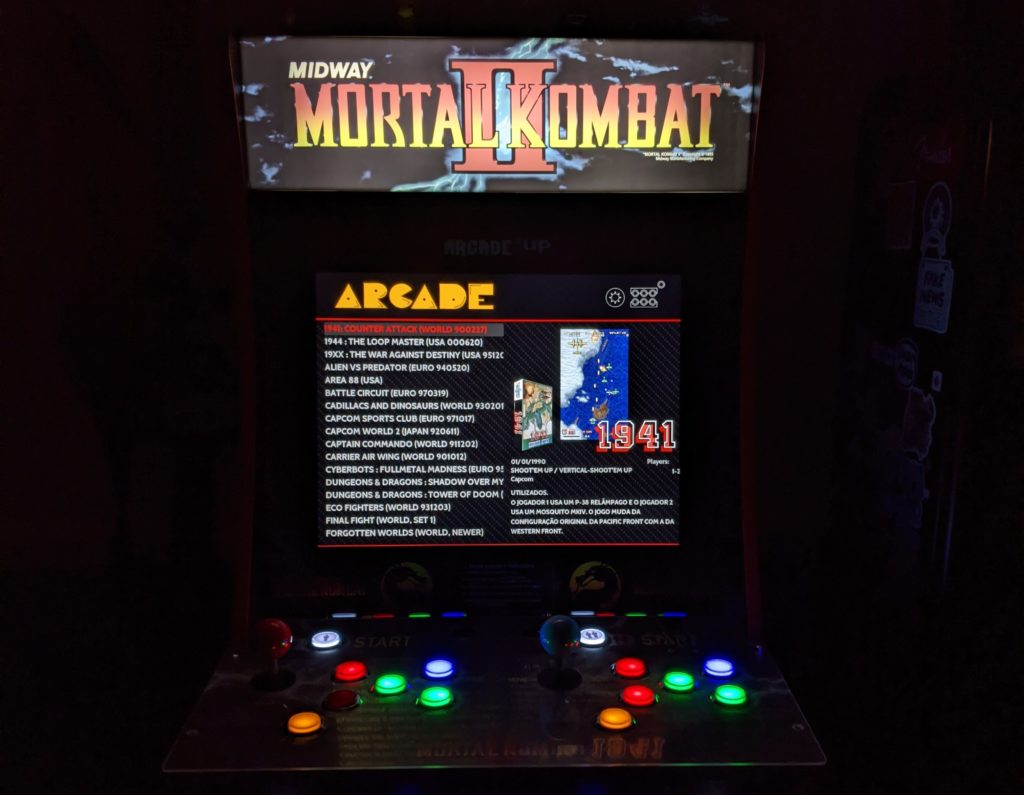
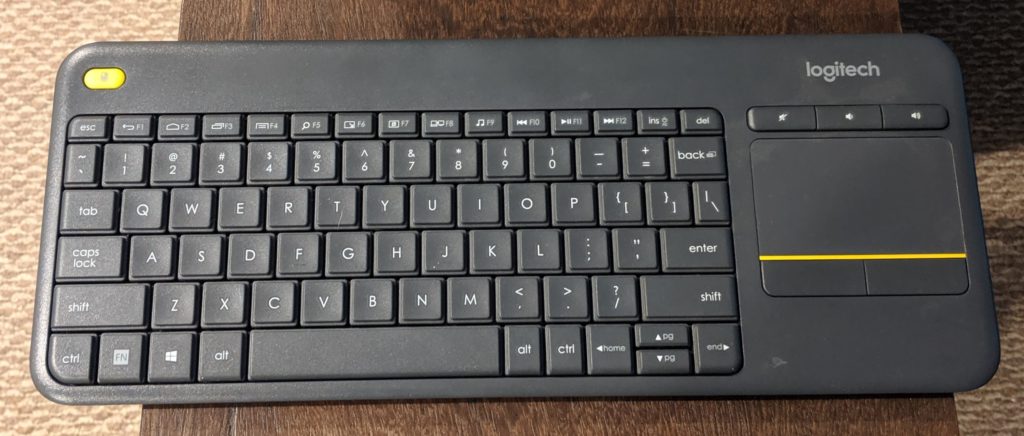
I done my first test with the Game Boy emulator and Kid Dracula. After that worked I moved to test more games.
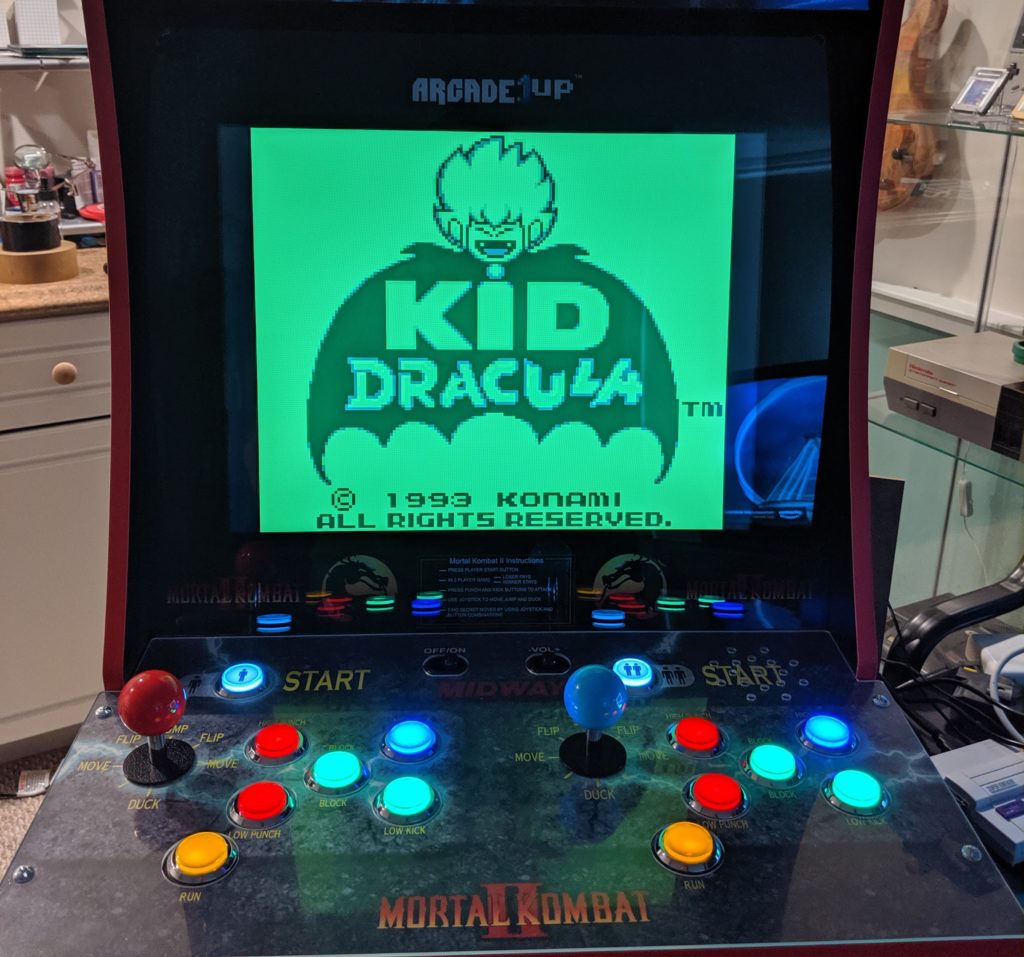
When I moved to games with a little bit heavier emulation I started to get this error.
under-voltage detected
The documentation for this said “The undervoltage icon is displayed when the voltage the Pi is receiving drops below 4.65V. “. Indeed, I was using a common USB charger. I then moved to a dedicated charger designed for a RPi that could provide enough current and voltage to power the RPi.
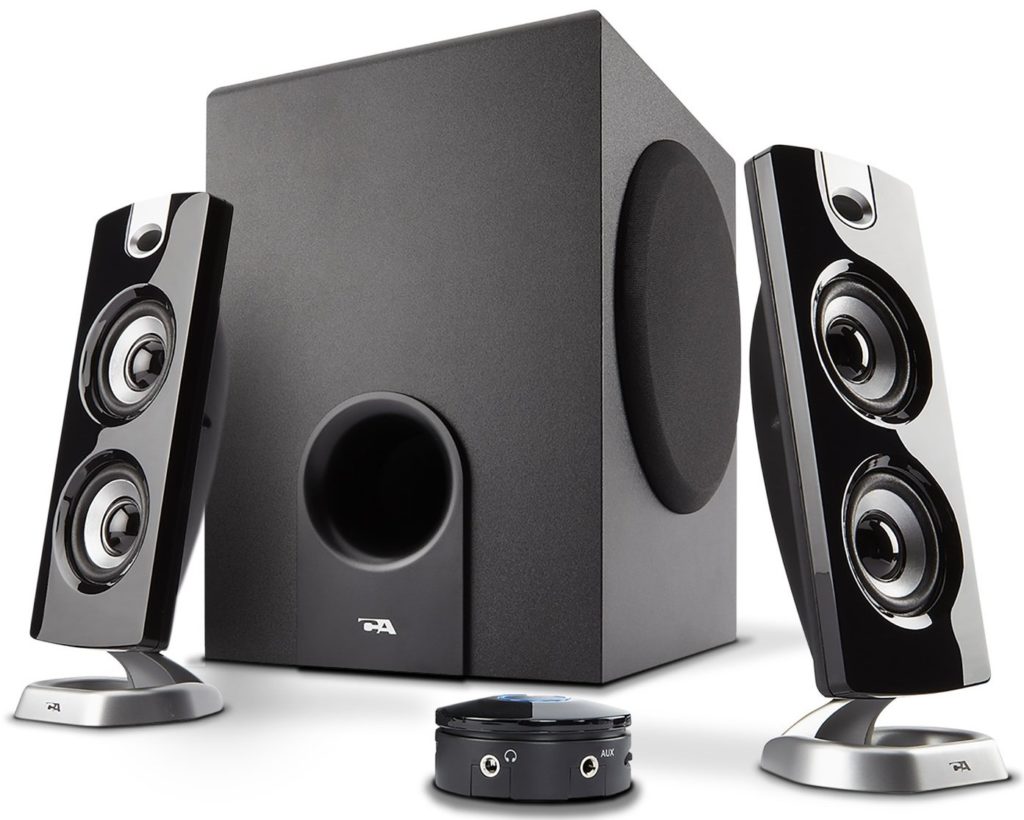
I had some Cyber Acoustics CA-3602FFP 2.1 Speaker Sound System with Subwoofer around that I used here. They are definitively an overkill for this project but I had them around and this could save me the trouble of dealing with amplifiers.
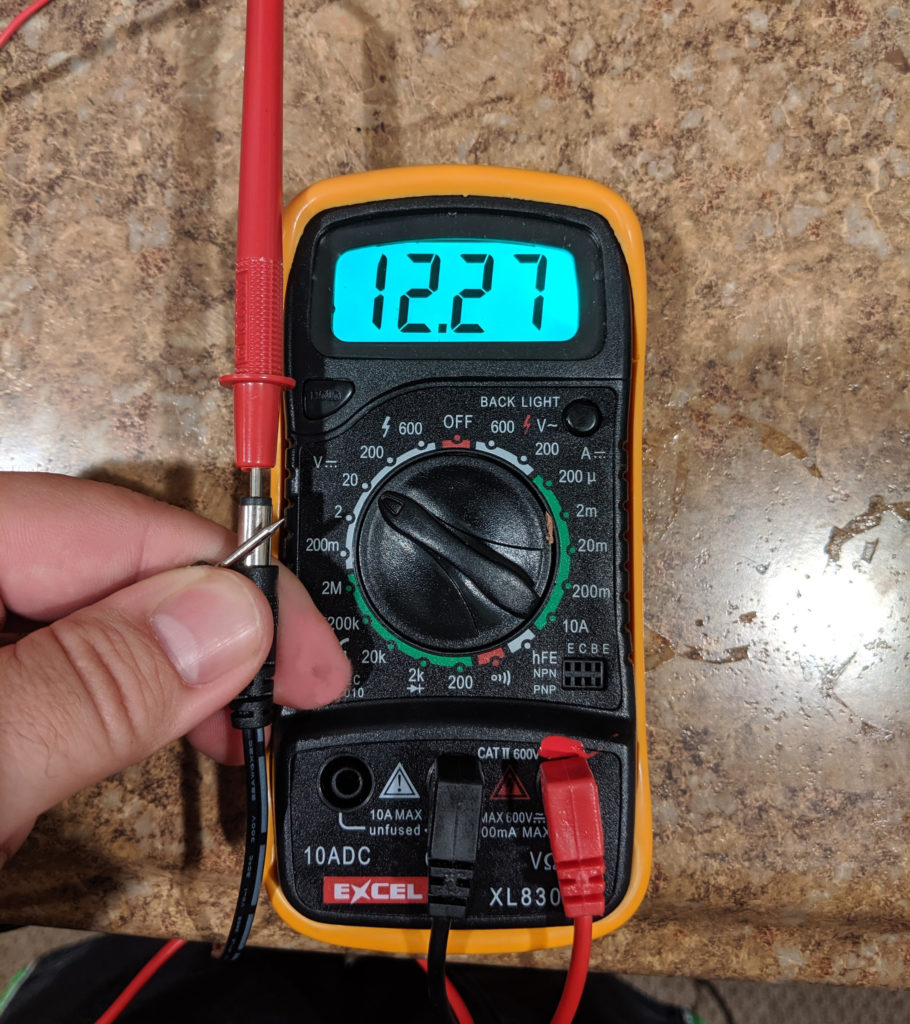
In the original light up marquee was powered by the output of the main board. The original power supply now powers the monitor controller board. I used this splitter cable to send one cable to the controller board and the other the the light up marquee. It’s always worth checking the polarity and voltage of these things.
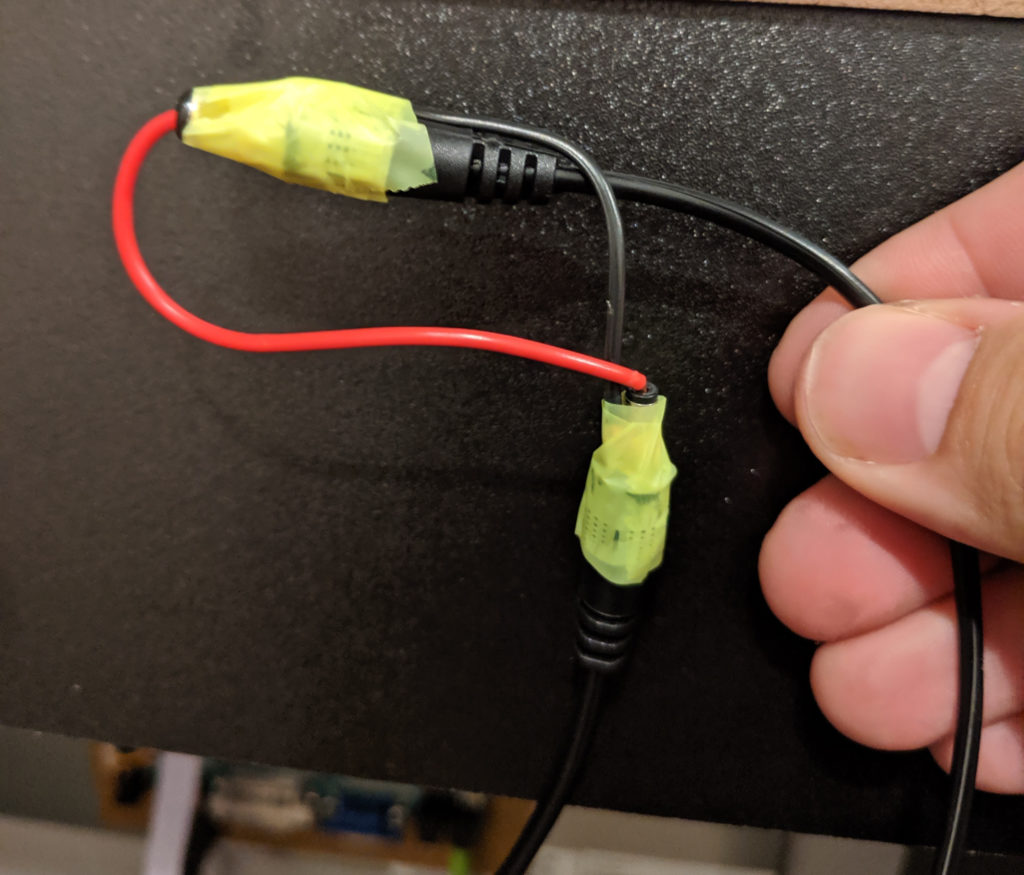
Because the splitter outputs two jack cables (male) and the lightup marquee cable is also a jack I had to do this workaround to connect the two cables. Cutting and reconnecting the cables would also work but I did not want to do that to the marquee cable. Later I will fix this.
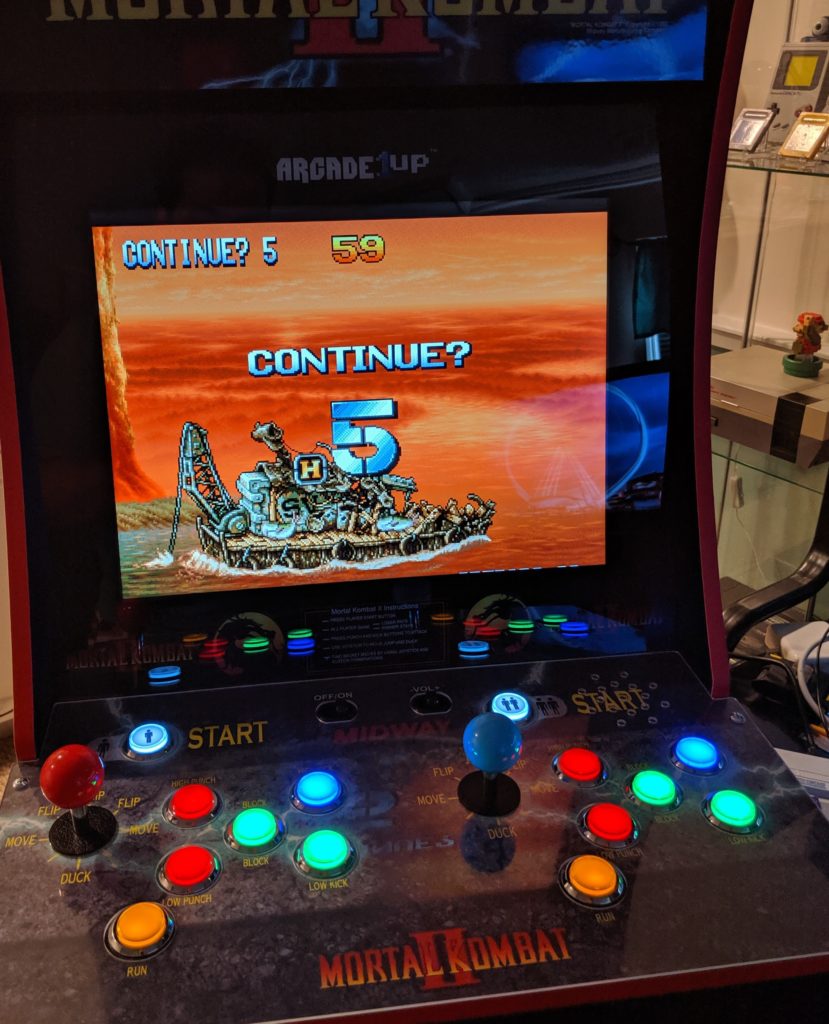
In front of all this I’m using an Amazon Smart Plug so I can say “Alexa, turn the arcade on” and everything is powered with all the lights and sounds. Other people have reused the on/off switch from the original control deck for this.
At this point this arcade cabinet is fully functional and can play hundreds of games. I’m still doing further modifications and improvements but they will come in future posts.

Seriously, is that hard?
To discovery which file type you have to use for your image just follow these simple instructions in following priority order:
Thank you.
In Inkscape if you have two filled circles. A big solid red one and a smaller, blurred and pinky one, like this:
 You can use the mask to trap one inside another to create a light effect.
Metaphorically, I drew a mask using the mask effect:

You can download it here: mask_inkscape_by_silveiraneto.svg
As always, you can use or modify it under the Creative Commons Attribution Share-Alike license.

Este aqui é um bot bem simples para Twitter.
Diariamente, as nove da manhã ele posta qual vai ser o cardápio do RU (Restaurante Universitário) da UFC naquele dia.
Assim, quando vai batendo a hora da fome, os alunos podem entrar no perfil @rudaufc e olhar qual vai ser o prato do dia, ou quem está seguindo ele no Twitter pode ter a agradável surpresa de ver todo dia o que vai ser servido hoje.
Aqui está o código fonte do arquivo rudaufc.sh:
#!/bin/sh
# Twitter bot @rudaufc
login="rudaufc"
senha="suasenhaaqui"

segunda="Picadinho com legumes ou bife na chapa. Salada de macarrão com cenoura. Arroz. Feijão com abóbora e batata doce."
terca="Franco guisado ou coxas de frango ao forno . Salada de acelga, cenoura e passas. Arroz. Feijão com abóbora e batata doce."
quarta="# Feijoada à moda RU ou bisteca . Salada de repolho branco, cenoura e abacaxi. Arroz. Feijão com abóbora e batata doce"
quinta="Frango à passarinho ou frango chinês. Salada de Alface, Tomate e Cebola. Arroz. Feijão com abóbora e batata doce."
sexta="# Isca ao molho ou maravilha de carne. Salada de acelga com cenoura. Arroz. Feijão com abóbora e batata doce."

dia=`(date +%w)`
log=`(date +%Y-%m-%d-%s)`"-$$.log"
dir="/home/silveiraneto/rudaufc"
msg=""
case "$dia" in
#	"0") msg=$domingo ;;
	"1") msg=$segunda ;;
	"2") msg=$terca ;;
	"3") msg=$quarta ;;
	"4") msg=$quinta ;;
	"5") msg=$sexta ;;
#	"6") msg=$sabado ;;
esac

curl -u $login:$senha -d status="$msg" http://twitter.com/statuses/update.xml > $dir/$log
A mágica toda está na capacidade do Curl de acessar facilmente a API do Twitter para enviar mensagens.
Para que o script execute diariamente as nove da manhã ele está alocado em um servidor com a crontab configurada da seguinte maneira:
0 5 * * * . /caminho_para_onde_ele_esta/rudaufc.sh
ps: leve em conta que o servidor está em um fuso horário diferente do Brasil.
Nessa versão o prato de cada dia está hardcoded no script, o que não é o ideal e faz com que semanalmente eu tenha que atualizar o script inserindo os pratos da semana manualmente. Eu espero que a próxima versão seja capaz de descobrir esses pratos e se atualizar sem nenhuma interferência.
I got a simple motor from a broken domestic printer. It’s a Mitsumi m355P-9T stepping motor. Any other common stepping motor should fits. You can find one in printers, multifunction machines, copy machines, FAX, and such.

With a flexible cap of water bottle with a hole we make a connection between the motor axis and other objects.


With super glue I attached to the cap a little handcraft clay ox statue.

It’s a representation from a Brazilian folkloric character Boi Bumbá. In some traditional parties in Brazil, someone dress a structure-costume and dances in circular patterns interacting with the public.


Photos by Marcus Guimarães.
Controlling a stepper motor is not difficult. There’s a good documentation on how to that on the Arduino Stepper Motor Tutorial. Basically it’s about sending a logical signal for each coil in a circular order (that is also called full step).

Animation from rogercom.com.

You’ll probably also use a driver chip ULN2003A or similar to give to the motor more current than your Arduino can provide and also for protecting it from a power comming back from the motor. It’s a very easy find this tiny chip on electronics or automotive stores or also from broken printers where you probably found your stepped motor.

With a simple program you can already controlling your motor.
// Simple stepped motor spin
// by Silveira Neto, 2009, under GPLv3 license
// http://silveiraneto.net/2009/03/16/bumbabot-1/
int coil1 = 8;
int coil2 = 9;
int coil3 = 10;
int coil4 = 11;
int step = 0;
int interval = 100;

void setup() {
  pinMode(coil1, OUTPUT);
  pinMode(coil2, OUTPUT);
  pinMode(coil3, OUTPUT);
  pinMode(coil4, OUTPUT);
}

void loop() {
  digitalWrite(coil1, step==0?HIGH:LOW);
  digitalWrite(coil2, step==1?HIGH:LOW);
  digitalWrite(coil3, step==2?HIGH:LOW);
  digitalWrite(coil4, step==3?HIGH:LOW);
  delay(interval);
  step = (step+1)%4;
}
Writing a little bit more generally code we can create function to step forward and step backward.
My motor needs 48 steps to run a complete turn. So 360º/48 steps give us 7,5º per step. Arduino has a simple Stepper Motor Library but it doesn’t worked with me and it’s also oriented to steps and I’d need something oriented to angles instead. So I wrote some routines to do that.
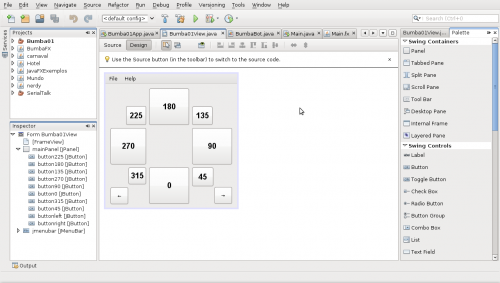
For this first version of BumbaBot I mapped angles with letters to easy the communication between the programs.

Notice that it’s not the final version and there’s still some bugs!
// Stepped motor control by letters
// by Silveira Neto, 2009, under GPLv3 license
// http://silveiraneto.net/2009/03/16/bumbabot-1/
int coil1 = 8;
int coil2 = 9;
int coil3 = 10;
int coil4 = 11;
int delayTime = 50;
int steps = 48;
int step_counter = 0;
void setup(){
pinMode(coil1, OUTPUT);
pinMode(coil2, OUTPUT);
pinMode(coil3, OUTPUT);
pinMode(coil4, OUTPUT);
Serial.begin(9600);
}
// tells motor to move a certain angle
void moveAngle(float angle){
int i;
int howmanysteps = angle/stepAngle();
if(howmanysteps<0){
howmanysteps = - howmanysteps;
}
if(angle>0){
for(i = 0;i
In another post I wrote how create a Java program to talk with Arduino. We'll use this to send messages to Arduino to it moves.Â
[put final video here]
To be continued... :)
JavaFX 1.0 is out and there are tons of new cool features, specially for game development.trans
I’ll show in this tutorial how to create a very simple demo that shows how to load imtrages, handle sprites, collisions and keyboard events that you can use to create a game with a old school rpg like vision.
For the background scenario I’m using the house that I drew and we’ll call as house.png.
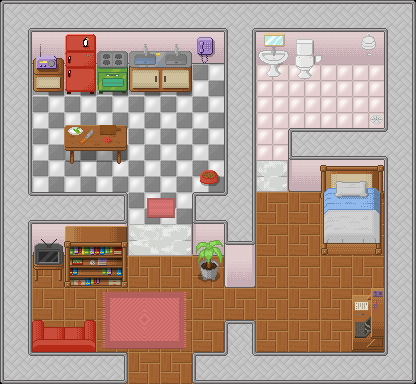
That we load as a Image and place into a ImageView.
ImageView{
   image: Image {url: "{__DIR__}house.png"}
}
For the character I’m using the last character I drew, the nerdy guy.

To make the animation easier, I spited it into 9 pieces:
down0.png, down1.png and down2.png


left0.png, left1.png and left2.png


right0.png, right1.png and righ2.png


up0.png, up1.png and up2.png


All images I’m using should be in the same directory of source code.
Let’s start loading the scenario and a single character sprite.
import javafx.stage.Stage;
import javafx.scene.Scene;
import javafx.scene.image.*;

Stage {
   title: "RPG-like demo", width: 424, height: 412
   visible: true
   scene: Scene{
      content: [
         ImageView{
         image: Image {url: "{__DIR__}house.png"} },
         ImageView{
            x: 320 y: 80
            image: Image {url: "{__DIR__}down1.png"}
         }
      ]
   }
}
Saved as Game.fx you can compile and run with in your terminal:
$ javafxc Game.fx
$ javafx Game
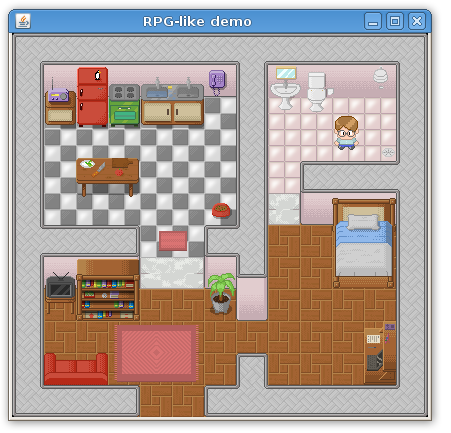
To put animation on the character we load all sprites into four lists. Each list for each direction.
// sprites
def up    = for(i in [0..2]) { Image {url: "{__DIR__}up{i}.png"    } }
def right = for(i in [0..2]) { Image {url: "{__DIR__}right{i}.png" } }
def down  = for(i in [0..2]) { Image {url: "{__DIR__}down{i}.png"  } }
def left  = for(i in [0..2]) { Image {url: "{__DIR__}left{i}.png"  } }
And create vars to store the character position and frame of animation.
var frame = 0;
var posx = 320;
var posy = 80;
Also store the house background.
// house background
def house = ImageView{ image: Image {url: "{__DIR__}house.png"} };
I create booleans to store some key states and at each interval of time I see how they are and do something about. You can handle keyboard event with less code but I like this way because keep visual and game logics a little bit more separated.
// keyboard
var    upkey = false;
var rightkey = false;
var  downkey = false;
var  leftkey = false;

// player
var player = ImageView{
   x: bind posx y: bind posy
   image: Image {url: "{__DIR__}down1.png"}
   onKeyPressed: function(e:KeyEvent){
      if (e.code == KeyCode.VK_DOWN) {
      downkey = true;
      } else if (e.code == KeyCode.VK_UP) {
         upkey = true;
      }else if (e.code == KeyCode.VK_LEFT) {
         leftkey = true;
      }else if (e.code == KeyCode.VK_RIGHT) {
         rightkey = true;
      }
   } // onKeyPressed

   onKeyReleased: function(e: KeyEvent){
      if (e.code == KeyCode.VK_DOWN) {
         downkey = false;
      } else if (e.code == KeyCode.VK_UP) {
         upkey = false;
      }else if (e.code == KeyCode.VK_LEFT) {
         leftkey = false;
      }else if (e.code == KeyCode.VK_RIGHT) {
         rightkey = false;
      }
   } // onKeyReleased
}
See a video of the game working so far:
[youtube]Xv5z-9LGuOc[/youtube]
Now we will add collisions. In a previous post I showed some math behind bounding box game collisions. The good news are that you no longer need to worry about that. There are a lot of API improvements in JavaFX 1.0 that do all the hard work for you, specially the new classes on javafx.geometry package, Rectangle2D and Point2D.
We create rectangles that represent the obstacles in the house.
// collidable obstacles
def obstacles = [
	Rectangle { x:   0 y:   0 width:  32 height: 382 stroke: Color.RED },
	Rectangle { x:   0 y:   0 width: 414 height:  64 stroke: Color.RED },
	Rectangle { x: 384 y:   0 width:  32 height: 382 stroke: Color.RED },
	Rectangle { x:   0 y: 192 width: 128 height:  64 stroke: Color.RED },
	Rectangle { x: 192 y: 192 width:  64 height:  64 stroke: Color.RED },
	Rectangle { x: 224 y:   0 width:  32 height: 288 stroke: Color.RED },
	Rectangle { x: 288 y: 128 width:  96 height:  64 stroke: Color.RED },
	Rectangle { x:   0 y: 352 width: 128 height:  32 stroke: Color.RED },
	Rectangle { x: 192 y: 352 width: 192 height:  32 stroke: Color.RED },
	Rectangle { x: 224 y: 320 width:  32 height:  32 stroke: Color.RED },
	Rectangle { x:  32 y:  64 width: 32 height: 32 stroke: Color.YELLOW },
	Rectangle { x:  64 y:  64 width: 32 height: 32 stroke: Color.YELLOW },
	Rectangle { x:  96 y:  64 width: 32 height: 32 stroke: Color.YELLOW },
	Rectangle { x: 128 y:  64 width: 64 height: 32 stroke: Color.YELLOW },
	Rectangle { x: 192 y:  32 width: 32 height: 32 stroke: Color.YELLOW },
	Rectangle { x:  64 y: 128 width: 64 height: 32 stroke: Color.YELLOW },
	Rectangle { x:  32 y: 250 width: 32 height: 32 stroke: Color.YELLOW },
	Rectangle { x:  64 y: 250 width: 64 height: 32 stroke: Color.YELLOW },
	Rectangle { x: 200 y: 255 width: 20 height: 20 stroke: Color.YELLOW },
	Rectangle { x: 200 y: 170 width: 20 height: 20 stroke: Color.YELLOW },
	Rectangle { x: 257 y:  32 width: 32 height: 32 stroke: Color.YELLOW },
	Rectangle { x: 288 y:  32 width: 32 height: 32 stroke: Color.YELLOW },
	Rectangle { x: 320 y: 192 width: 64 height: 64 stroke: Color.YELLOW },
	Rectangle { x: 352 y: 295 width: 32 height: 60 stroke: Color.YELLOW },
	Rectangle { x:  32 y: 327 width: 64 height: 23 stroke: Color.YELLOW },
];
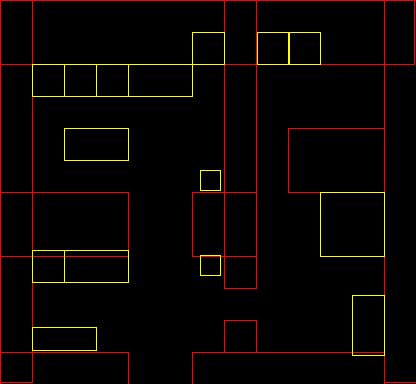
We just have to change a little bit the game logics in order to handle collisions.
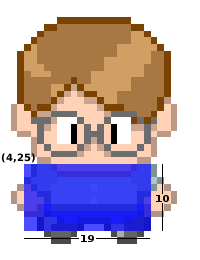
We define a bounding box around the player, it’s a rectangle from (4, 25) at the player coordinates system and with width 19 and height 10. The idea is to prospect where the player will be in the next step, see if it’s bouding box don’t collide with any obstacle and so pass it to the real game position.
// game logics
var gamelogics = Timeline {
   repeatCount: Timeline.INDEFINITE
   keyFrames: KeyFrame {
      time : 1s/8
      action: function() {
         var nextposx = posx;
         var nextposy = posy;
         if(downkey) {
            nextposy += 5;
            player.image = down[++frame mod 3];
         }
         if(upkey) {
            nextposy -= 5;
            player.image = up[++frame mod 3];
         }
         if(rightkey) {
            nextposx += 5;
            player.image = right[++frame mod 3];
         }
         if(leftkey) {
            nextposx -= 5;
            player.image = left[++frame mod 3];
         }
         for(obst in obstacles) {
            if(obst.boundsInLocal.intersects(nextposx + 4, nextposy + 25, 19, 10)) {
               return;
            }
         }
         posx = nextposx;
         posy = nextposy;
      }
   }
}
This is enough to do the trick but I also added a way to smoothly show the obstacles when pressing the space key.
[youtube]k-MHh6irvwE[/youtube]
Here is the complete source code.
package Game;

import javafx.stage.Stage;
import javafx.scene.*;
import javafx.scene.image.*;
import javafx.scene.input.*;
import javafx.scene.paint.*;
import javafx.scene.shape.*;
import javafx.animation.*;

var frame = 0;
var posx = 320;
var posy = 80;

// sprites
def up    = for(i in [0..2]) { Image {url: "{__DIR__}up{i}.png"    } }
def right = for(i in [0..2]) { Image {url: "{__DIR__}right{i}.png" } }
def down  = for(i in [0..2]) { Image {url: "{__DIR__}down{i}.png"  } }
def left  = for(i in [0..2]) { Image {url: "{__DIR__}left{i}.png"  } }

// house background
def house = ImageView{ image: Image {url: "{__DIR__}house.png"} };

// keyboard
var    upkey = false;
var rightkey = false;
var  downkey = false;
var  leftkey = false;

// player
var player = ImageView{
   x: bind posx y: bind posy image: down[1]
   onKeyPressed: function(e:KeyEvent){
      if (e.code == KeyCode.VK_DOWN) {
         downkey = true;
      } else if (e.code == KeyCode.VK_UP) {
         upkey = true;
      }else if (e.code == KeyCode.VK_LEFT) {
         leftkey = true;
      }else if (e.code == KeyCode.VK_RIGHT) {
         rightkey = true;
      }

		if(e.code == KeyCode.VK_SPACE){
         if(fade==0.0){
         	fadein.playFromStart();
			}
			if(fade==1.0){
				fadeout.playFromStart();
			}
		}
   } // onKeyPressed

   onKeyReleased: function(e: KeyEvent){
      if (e.code == KeyCode.VK_DOWN) {
         downkey = false;
      } else if (e.code == KeyCode.VK_UP) {
         upkey = false;
      }else if (e.code == KeyCode.VK_LEFT) {
         leftkey = false;
      }else if (e.code == KeyCode.VK_RIGHT) {
         rightkey = false;
      }
   } // onKeyReleased
}

// collidable obstacles
def obstacles = [
	Rectangle { x:   0 y:   0 width:  32 height: 382 stroke: Color.RED },
	Rectangle { x:   0 y:   0 width: 414 height:  64 stroke: Color.RED },
	Rectangle { x: 384 y:   0 width:  32 height: 382 stroke: Color.RED },
	Rectangle { x:   0 y: 192 width: 128 height:  64 stroke: Color.RED },
	Rectangle { x: 192 y: 192 width:  64 height:  64 stroke: Color.RED },
	Rectangle { x: 224 y:   0 width:  32 height: 288 stroke: Color.RED },
	Rectangle { x: 288 y: 128 width:  96 height:  64 stroke: Color.RED },
	Rectangle { x:   0 y: 352 width: 128 height:  32 stroke: Color.RED },
	Rectangle { x: 192 y: 352 width: 192 height:  32 stroke: Color.RED },
	Rectangle { x: 224 y: 320 width:  32 height:  32 stroke: Color.RED },
	Rectangle { x:  32 y:  64 width: 32 height: 32 stroke: Color.YELLOW },
	Rectangle { x:  64 y:  64 width: 32 height: 32 stroke: Color.YELLOW },
	Rectangle { x:  96 y:  64 width: 32 height: 32 stroke: Color.YELLOW },
	Rectangle { x: 128 y:  64 width: 64 height: 32 stroke: Color.YELLOW },
	Rectangle { x: 192 y:  32 width: 32 height: 32 stroke: Color.YELLOW },
	Rectangle { x:  64 y: 128 width: 64 height: 32 stroke: Color.YELLOW },
	Rectangle { x:  32 y: 250 width: 32 height: 32 stroke: Color.YELLOW },
	Rectangle { x:  64 y: 250 width: 64 height: 32 stroke: Color.YELLOW },
	Rectangle { x: 200 y: 255 width: 20 height: 20 stroke: Color.YELLOW },
	Rectangle { x: 200 y: 170 width: 20 height: 20 stroke: Color.YELLOW },
	Rectangle { x: 257 y:  32 width: 32 height: 32 stroke: Color.YELLOW },
	Rectangle { x: 288 y:  32 width: 32 height: 32 stroke: Color.YELLOW },
	Rectangle { x: 320 y: 192 width: 64 height: 64 stroke: Color.YELLOW },
	Rectangle { x: 352 y: 295 width: 32 height: 60 stroke: Color.YELLOW },
	Rectangle { x:  32 y: 327 width: 64 height: 23 stroke: Color.YELLOW },
];

// game logics
var gamelogics = Timeline {
   repeatCount: Timeline.INDEFINITE
   keyFrames: KeyFrame {
      time : 1s/8
      action: function() {
         var nextposx = posx;
         var nextposy = posy;
         if(downkey) {
            nextposy += 5;
            player.image = down[++frame mod 3];
         }
         if(upkey) {
            nextposy -= 5;
            player.image = up[++frame mod 3];
         }
         if(rightkey) {
            nextposx += 5;
            player.image = right[++frame mod 3];
         }
         if(leftkey) {
            nextposx -= 5;
            player.image = left[++frame mod 3];
         }
         for(obst in obstacles) {
            if(obst.boundsInLocal.intersects(nextposx + 4, nextposy + 25, 19, 10)) {
               return;
            }
         }
         posx = nextposx;
         posy = nextposy;
      }
   }
}

gamelogics.play();

// obstacles view
var fade = 0.0;

var obstacleslayer = Group {
   opacity: bind fade
   content: [
      Rectangle { x:0 y:0 width:500 height: 500 fill: Color.BLACK },
      obstacles,
      Rectangle {
        x: bind posx + 4 y: bind posy + 25 width: 19 height: 10
        fill: Color.LIME
      }
   ]
}

var fadein = Timeline {
	keyFrames: [
   	at (0s) {fade => 0.0}
   	at (1s) {fade => 1.0}
   ]
}

var fadeout = Timeline {
	keyFrames: [
   	at (0s) {fade => 1.0}
   	at (1s) {fade => 0.0}
   ]
}

// game stage
Stage {
	title: "RPG-like demo", width: 424, height: 412
	visible: true
	scene: Scene{
      fill: Color.BLACK
		content: [house, player, obstacleslayer]
	}
}
Play Through Java Web Start

or click here to play via applet, inside your browser.
update: The applet version and Java Web Start versions should be working now. The applet version on Linux seems to be having problems with the keyboard handling, use the Java Web Start version while I’m trying to fix it.
Downloads:

